Thailand's Creative Art & Design Community
-
AON
- Male
- Bangkok
- Thailand
- Blog Posts
- Discussions (9)
- Events
- Groups (32)
- Artworks/Photos (136)
- Albums (5)
- Videos/Animations (1)
AON's Groups
-
Coloring Collaboration
503 members
-
Lomography
311 members
-
Creative for Hire
1440 members
-
Asahi Fashion Setto - St…
223 members
-
Job Classiflieds
4311 members
RSS
How to create cinematic visual effects with AI video editing tools
You don’t need a Hollywood budget or years of editing experience to create cinematic video effects or even more advanced AI video effects anymore. Start with strong footage, use AI tools such as Envato VideoGen, Runway ML, or DaVinci Resolve for cleanup and enhancements, and finish with your own creative polish.
With today’s AI video editing tools, you can automate complex tasks like rotoscoping, relighting, and color grading, freeing you up to focus on storytelling and style. AI isn’t here to replace your creativity; it’s here to make it faster, easier, and more fun.
Want to create cinematic visual effects without advanced editing skills or expensive software? This article is designed for beginners who want to learn how to use AI video editing tools to quickly create professional video effects. Whether you're a 3D artist, video editor, animator, or just someone curious about what’s possible, we’ll walk you through how it works and how to use AI tools to make your videos look like they belong on the big screen.
But let’s jump straight in with which AI tools are actually beginner-friendly and deliver the most cinematic results right out of the box.
Top beginner-friendly AI video editing tools for cinematic VFX
There are loads of AI tools out there right now, but some are way more beginner-friendly than others, especially for creating cinematic visual effects and for AI in video editing. If you’re just starting out, you’ll want tools that are simple, intuitive, and help you create cinematic results without needing complex workflows or high-end gear.
Here are a few beginner-friendly AI video effects tools worth exploring, each designed to help you bring professional-quality effects to life in minutes, not days.
1. Envato VideoGen
VideoGen is Envato’s own AI text-to-video tool, and it’s a great place to start if you’re new to cinematic effects. Available to all Envato subscribers, the tool works well for social media posts, presentation visuals, and YouTube thumbnails. It's particularly helpful when you need to create video content but don't have a background in video production or the time or budget to shoot. Here’s what was created with VideoGen in just a few minutes using the prompt: "An orange with a face, hanging in the tree with other oranges, until a blackbird lands on it and begins pecking."
Pros:
- Extremely intuitive and beginner-friendly.
- Included in your Envato subscription (generation limits apply, based on your plan).
- Fast: short videos take around 10 minutes to generate.
- Modify', 'Change Subject', and 'Reframe editing features
- No downloads needed because it runs right in your browser.
Cons:
- Can’t purchase as a standalone if that’s what you require.
2. Runway ML
Runway ML is a browser-based AI video editor built for creators who want advanced results without the technical overhead. It’s packed with smart, accessible features that make it ideal for experimenting, even if you’re completely new to VFX or video editing. Honestly, it’s one of the easiest (and most fun) tools to play with when you’re learning the ropes.
Pros:
- Simple, beginner-friendly interface
- The Green Screen tool makes background removal fast and accurate.
- Great for inpainting (removing objects), relighting, and generating missing frames.
- No downloads needed because it runs right in your browser.
Cons:
- The free version has limitations on export quality and usage.
- Processing times can be slower for larger videos.
3. Adobe Premiere Pro + Adobe Firefly
If you’re already editing in Adobe Premiere Pro, chances are you’ve been using AI tools without even realizing it. Adobe’s Firefly technology is now built directly into Premiere Pro, giving you a powerful blend of automation and creative control inside a professional-grade editor.
For beginners ready to grow their skills, this setup strikes a great balance. You can start simple and expand into more advanced visual effects in the same workspace.
Pros:
- AI tools like Auto Reframe, Generative Extend, and Scene Edit Detection save tons of time.
- Integrated color grading tools make cinematic looks easier to achieve.
- Smooth workflow with After Effects, ideal for scaling up to advanced AI effects.
Cons:
- Steeper learning curve for absolute beginners.
- Requires a separate Adobe Creative Cloud subscription (and it’s not cheap!).
4. DaVinci Resolve (Neural Engine)
DaVinci Resolve is a powerhouse for color grading, and the Neural Engine adds a bunch of AI magic to the mix. It’s more advanced than some of the other options here, but still very accessible for beginners with a little exploration.
The Neural Engine helps automate complex editing tasks like face refinement, smart masking, and speed warping, making cinematic results faster (and far more fun) to achieve. And the best part? The free version is surprisingly capable, offering most of the essential features without major restrictions.
Pros:
- AI tools like Face Refinement, Smart Masking, and Speed Warp are truly impressive.
- Industry-standard color grading built right in.
- The free version is very powerful, though it has a few limitations, and includes most core features.
Cons:
- The Interface can feel overwhelming for first-time users.
- Best performance requires a powerful machine.
5. CapCut
CapCut has evolved from a mobile app into a surprisingly capable desktop video editor, making it a solid choice for creators who want to produce short, cinematic clips fast. If you’re creating short cinematic clips for social media, this tool is fast, free, and surprisingly powerful for how simple it is to use.
It’s clean, intuitive, and packed with clever AI features, from background removal to motion tracking, that help you focus on storytelling instead of technical tweaks.
Pros:
- Simple, clean interface with drag-and-drop editing.
- AI background removal and motion tracking are easy to use.
- Ideal for quick cinematic social media clips.
- Free to use, with both desktop and mobile versions available.
Cons:
- Limited customization for advanced VFX.
- Watermarking on the free version (unless you create an account).
6. Canva Video Editor
While Canva isn’t a traditional VFX platform, its AI-powered video editor makes it a great starting point for beginners who want polished results without diving into complex timelines or visual effects workflows. It’s a great place to start if you’re more of a designer than a video editor, and it helps you to create storytelling-driven videos with style and ease.
Pros:
- Built-in AI tools for timing, transitions, and text effects.
- Great for designers expanding into video.
- Easy to use and perfect for storytelling-driven content.
Cons:
- Limited control over video layers and AI video effects.
- Not ideal for complex cinematic or 3D visuals.
What is AI in video editing?
AI in video editing is like having a really smart assistant who understands your footage and helps you edit faster (and sometimes better). It doesn’t just follow instructions; AI tools learn from huge amounts of visual data and apply that knowledge to your own clips, making it easier than ever to create professional-quality AI video effects.
Here’s a breakdown of what that actually means:
- AI understands what’s in your video: It can recognize faces, objects, motion, backgrounds, and even lighting patterns to make context-aware edits.
- It automates complex tasks: Think automatic background removal, object tracking, scene relighting, and frame interpolation. AI handles technical jobs that would normally take hours.
- It speeds up your workflow: With AI tools handling much of the work, you no longer need to spend hours or even days keyframing or rotoscoping. Instead, you can concentrate on your creative decisions.
- You stay in control: AI doesn’t take over your project, it just takes care of the tedious stuff and gives you a solid starting point to work from.
If you’re brand new to video effects, AI tools are easily the fastest route to cinematic results without getting overwhelmed. You don’t need to be an expert; you just need the right tool and a bit of curiosity.
What can AI tools actually do?
This is the most exciting part! There is just so much that AI can do. AI-powered tools can now handle a large portion of VFX work. From background removal to cinematic color grading, today’s AI features give creators the power of a mini post-production studio right on their laptop.
Here are some of the most useful (and beginner-friendly) ways AI is transforming video editing:
- Automatic rotoscoping and background removal: Perfect for cutting out a subject or replacing a background without green screens or headaches.
- Motion tracking and object detection: Need to add text or effects that follow a moving object? AI can track it for you in seconds.
- Scene relighting and sky replacement: Some tools let you literally change the lighting or swap a dull sky for a dramatic sunset, all with a few clicks.
- Style transfer and color grading: You can apply a cinematic “look” or match the color palette of your favorite film with the help of AI-driven LUTs and filters.
- Slow motion and frame interpolation: Even if your footage wasn’t shot in high frame rate, AI can generate those missing frames and create super smooth slow-mo.
- Audio syncing and smart cuts (bonus): Some tools also use AI to automatically sync dialogue or cut scenes to music, perfect for fast-paced storytelling.
In short, AI gives you creative control without the complexity; it’s like having a mini VFX studio built into your laptop. And the best part? Most of these tools are super intuitive, even if you’ve never touched After Effects or DaVinci Resolve before.
How to use AI tools to create cinematic effects
Creating cinematic visual effects might sound complicated, but with AI tools on your side, it’s honestly more accessible than ever. You don’t need to know how to animate explosions or spend hours keyframing masks. You just need a bit of planning, a creative eye, and the right AI features to handle the technical side.
Step 1: Start with strong footage and storytelling
- Even the best AI tools can’t fix a boring shot. To get truly cinematic results, start with footage that already has some visual drama, emotion, or storytelling potential.
- Use natural lighting: Or simple setups with clear contrast and depth. Soft shadows and golden-hour tones often look great on camera.
- Think about movement: Slow pans, push-ins, or handheld shots can add energy and create a sense of realism and flow.
- Frame your shots intentionally: Use the rule of thirds, leading lines, or negative space to make each scene feel composed and deliberate.
The better your source material, the more effectively AI tools can elevate it, whether you’re color grading, relighting, or adding dynamic effects later.
Step 2: Use AI for cleanups and time-saving tasks
This is where AI truly earns its place in your video workflow. Instead of spending hours doing frame-by-frame cleanup work, you can let the tools handle the technical stuff while you focus on the creative side.
Here’s how AI can save you serious editing time:
- Background removal: Use tools like Runway ML or CapCut to isolate subjects without needing a green screen, perfect for quick compositing or adding new environments.
- Object removal or inpainting: Got a distracting bin in your shot? Need to remove a person? AI can paint it out in seconds.
- Stabilization and framing: Use AI to smooth shaky footage or reframe it automatically for different aspect ratios (ideal for vertical social clips).
- Sky replacement or relighting: Some tools let you swap a grey sky for something moodier or tweak the lighting to match your vibe or story tone.
With these cleanups handled automatically, you can focus on what really matters: building the emotion, rhythm, and storytelling that make your visuals stand out.
Step 3: Add cinematic polish
Now’s the fun part: turning clean, edited footage into something that feels cinematic. This is where your personal creative style shines through, and AI tools can help you get that perfect “movie magic” look faster than ever.
- Color grading: Use AI-assisted color tools (such as Lumetri in Premiere or the Neural Engine in Resolve) to apply a film-inspired LUT or match tones across scenes. This helps create a cohesive, professional look that feels consistent scene to scene.
- Motion effects: Try AI-generated slow motion or speed ramps to add drama. Add depth of field and smooth out cuts or add subtle camera moves. You can also use AI to smooth transitions between cuts or enhance the depth of field for that cinematic blur.
- Visual textures: Light leaks, lens flares, film grain, or even dust overlays. All these little touches go a long way in selling that “big screen” feel.
The goal here isn’t to overdo it, just to give your footage depth, mood, and emotion that feels intentional and artfully crafted.
Step 4: Refine with manual adjustments
AI tools are great at getting most of the job done. But what about the final parts and the finishing touch? That’s where your creative instincts come in. I always take a final pass without any AI help, just to make sure everything flows and feels right. Trust your gut here.
Here’s what to focus on during that final review:
- Adjust colors and effects manually: This helps avoid theover-processed, super-sharp “AI look” andkeeps your visuals feeling authentic.
- Watch the pacing and emotional flow: Cinematic editing is about rhythm as much as it is about visuals. Watch your sequence with sound to ensure each cut lands with intent.
- Layer effects intentionally: Resist the temptation to pile on filters or transitions. In cinematic work. Don’t overdo it! Subtlety is usually more powerful.
Think of this stage as the creative handshake between you and your AI assistant; it’s where your intuition turns technical precision into storytelling magic.
The future of cinematic visuals is here
The future of cinematic visuals is here
We’re living in an incredibly exciting time for creative work. AI tools are breaking down barriers that once made cinematic effects feel out of reach, especially for solo creators and small teams.
What used to take hours in post-production can now happen in minutes, from cleaning up shots and enhancing lighting to adding mood and motion. It’s not about cheating the process; it’s about getting to the creative part faster and having more fun while you’re at it.
That said, AI can’t do everything. Sometimes it gets things wrong, or you end up with something that looks a little too... auto-generated. That’s where your own creative taste comes in. Use AI video generators as your assistant, not your director. Let it handle the boring bits so you can focus on making something that feels like you.
So go ahead and play, experiment, and break things. You don’t need a Hollywood studio to make something cinematic anymore. Just a good idea, a bit of curiosity, and maybe a few AI tricks up your sleeve.
FAQs for Cinematic VFX with AI video editing tools
Do I need editing experience to use AI video tools? No. Most AI video editors are designed for beginners and automate complex steps such as masking, tracking, and grading. You can get cinematic results even without prior experience in apps like After Effects or Premiere Pro.
Can I use free AI tools for cinematic effects? Yes. Free tools like CapCut, Runway ML, and the free version of DaVinci Resolve offer powerful AI features. Just note that export quality or resolution may be limited in some free plans.
What’s the best AI video editing tool for beginners? For newcomers, VideoGen (available to Envato subscribers) is one of the easiest options. It’s text-to-video, browser-based, and ideal for short cinematic clips or social media visuals.
Will AI replace traditional VFX artists? Not at all. AI speeds up repetitive technical work but still needs human creativity, taste, and storytelling to produce high-quality results. It’s a creative assistant, not a replacement.
How can I make my AI-generated videos look more cinematic? Focus on storytelling, composition, and color. Start with strong source footage, use AI for cleanup and enhancements, then manually refine your edits, especially pacing, lighting, and effects. Subtlety is key.
What kind of computer do I need for AI video editing? Browser-based tools like Runway ML, VideoGen, and Canva Video Editor run well on most modern laptops. For heavier tools like DaVinci Resolve, a more powerful machine with a good GPU will deliver smoother performance.

How to design a yearbook layout in InDesign
In this Adobe InDesign tutorial, you will learn how to create a yearbook layout using paragraph styles, InDesign's parent pages, and how to build a simple photo grid for arranging multiple portraits.
If you want a ready-made template instead of following this tutorial, check out this yearbook layout template available on Envato.
What you'll need for this InDesign tutorial
For this yearbook template tutorial, I've created a collection of assets you can use.
1. How to design a book cover
Step 1
Create a new document in Adobe Photoshop that's 8.75 x 11.25 in, Grayscale, and 300 Resolution. Take your torn paper edges and arrange them on the canvas like so.
Step 2
Use a variety of student/school life photos or use images from the collection linked above, and arrange them underneath the torn paper edges.
Step 3
Open the halftone grayscale texture and place it on top of your image. I'm using #10 from the zip file for reference. Change the layer to Linear Burn. Add a Color Fill layer #000000 and change the layer to Overlay with 50% Opacity. Place a Brightness and Contrast adjustment layer on top and change the Brightness to 79. Save the file as a PSD to your desktop.
Step 4
Create a new document in InDesign using 8.5 x 11 for the dimensions, 24 pages, 0.5 in margins, and 0.125 in bleed on each side. Select Create.
Step 5
File > Place the cover we just saved as a PSD and put it on the cover. Change the Opacity to 70% and the Mode to Overlay.
Step 6
Create a new swatch in the Swatches panel using the values C100, M70, Y10, and K55. Use the Rectangle Tool (M) to cover the background with this deep blue swatch. Move it behind the photo collage.
Step 7
Use the Glendale and Michigan Signature fonts for the "Class of" text. Use the Type Tool (T) and type "2025" using NexusBold with a font size of 390 pt. Fill the text with yellow from the Swatches panel, and then apply a Drop Shadow in the Effects panel.
Step 8
Add an Inner Shadow effect using the paper swatch.
Step 9
Add an Inner Glow effect using the fuchsia swatch.
Step 10
Add a Bevel and Emboss effect using the fuchsia and C2 M45 Y22 K10 swatches.
Step 11
Add a Satin effect using the C13 M72 Y100 K0 swatch.
Step 12
Add a Basic Feather effect.
Step 13
Finish the cover by adding information about your school and the mascot's logo using C86 M1 Y5 K0 and paper from the Swatches panel.
2. How to create an InDesign table of contents
Step 1
On Page 2, type out the words "Table of Contents" using Glendale, NexusBold, and Maksimal.
Step 2
Create a new layer in the Layers panel and name it Footer. In the Pages panel, double-click the A-Parent spread. Use the Type Tool (T) and create a square in the corner. Right-click > Type > Insert Special Characters > Markers > Current Page Number. Change the font to Glendale. Add another text field and type the name of the school. Duplicate these text layers and add them to the facing page. Duplicate this A-Parent spread and change the colors of the footer to a light color version to be used on dark backgrounds.
Step 3
Working on Layer 1 in the Layers panel, use the #10 texture from the halftone grayscale zip file, and place it on the document in the background. Change the Opacity to 40%. Finish the background by adding the mascot of your school to the background with a 7% Opacity.
3. How to design a yearbook layout template
Step 1
On page 3, we will place the letter from the principal and use doodle lines to add some flair to our spread. In the Paragraph Styles panel, create a new style to simplify the text formatting later in the tutorial.
Step 2
Place the photo of your principal on page 3. Use the Pen Tool (P) to make an outline around the principal.
Step 3
Select the photo of the principal along with the shape we just created with the Pen Tool (P). In the Pathfinder panel, select the Subtract icon under the Pathfinder section. Add an orange Drop Shadow using the Effects panel.
Step 4
In this next step, you'll learn how to use InDesign's text wrap feature. With the principal's photo still selected, go to the Text Wrap panel and select Wrap around object shape. Change the Top Offset to 0.3125 in.
Step 5
On page 4, we will design a "year in review" graphic. Let's start by using a combination of the Ellipse Tool (L), Rectangle Tool (M), and Type Tool (T) to create a music graphic for the top songs of the school year. Don't forget to fill the background with a light blue halftone texture.
Step 6
Next, add some ripped pieces of paper and create a variety of "fill in the blanks" exercises and interesting facts that happened during the school year. Finish by adding candid photos of some school activities overlaid with doodle lines.
Step 7
Page 5 will be a replica of page 3. Use the same methods of building this page, but make sure to add a flag pennant with your school's mascot.
Step 8
On the next spread (pages 6 & 7), we'll create a special "awards and superlatives" section. Use the Rectangle Frame Tool (F) to create four frames on each spread with a black Drop Shadow and light blue Stroke, along with a horizontal bar for first and last names.
Step 9
Add some captions along with photos like "Most Creative" and "Class Clown" near the images of the winners.
Step 10
Wrap up this section by adding more doodles from the previous spreads.
Step 11
For pages 8 & 9, we'll add the photos for the clubs and teams. Start by applying a C0 M77 Y68 K0 background and a halftone texture.
Step 12
Use the Rectangle Tool (M) to create several squares and place photos for the polaroids we are making. Use the Maksimal font for the caption.
Step 13
Copy (Command-C) and paste (Command-V) the paper tears used on page 4 and type out a description for each photo. Add more doodle lines to this spread as well.
4. How to make a photo collage
Step 1
For pages 10 & 11, you will learn how to make a photo collage. Start by adding a dark blue background and halftone texture. Create a title for your school article—for this example, I'm using "A day in the life at Hawkins High School". Use the fonts NexusBold, Glendale, and Maksimal for the headline and subtitle.
Step 2
Use the Rectangle Tool (M) to create several overlapping rectangles of different sizes. File > Place your candid student photos into each one.
Step 3
Grab the Type Tool (T) and create several frames around the photo collage we created. Fill the frames with information detailing student life at the school.
5. How to make a photo grid
Step 1
Start by setting up pages 12 & 13 with the halftone texture and "Faculty & Staff" headline.
Step 2
Choose the Rectangle Tool (F) and drag across the page then press the right arrow and down arrow keys to create a photo grid.
Step 3
File > Place the faculty headshots and type the staff names beneath each photo.
Step 4
For pages 14-21, divide your students' photos by class and place them. Add more pages and repeat this process if needed.
Step 5
On the final spread, leave some space for autographs and farewell messages for students.
Step 6
On the back cover, mimic the style of the front cover, with more images of students.
All done!
You can now celebrate special memories with your students and faculty by using this yearbook layout template. In this yearbook layout tutorial, you learned how to design a book cover, wrap text around images, use InDesign's parent pages for page numbering, and organize your table of contents.
Elevate your yearbook display with this hardcover book mockup available via Envato.
5 creative yearbook template ideas
Create additional yearbook templates by using this list of customizable layouts.
School yearbook template (INDD, Canva)
This InDesign layout template is ideal for showcasing the achievements, events, and celebrations of both teachers and students.
Yearbook brochure template (INDD, Canva)
Guide your students through an exciting school year with this colorful yearbook brochure template. This template includes versions for both Canva and InDesign, helping your memories shine.
School yearbook (INDD)
This yearbook layout template features over 25 pages of ready-to-print content, including various layouts such as student articles, two cover designs, a table of contents, and photo collages.
School yearbook template (INDD)
School yearbook template is a customizable layout with 24 pages. Created in InDesign, this professional template provides everything needed to design a yearbook for faculty and students.
Digital yearbook template (INDD, Canva)
This digital yearbook template is ideal for colleges, universities, and other educational institutions to highlight student life and activities. Available in various formats, it allows the creation of diverse layouts that celebrate students' moments.
If you liked this tutorial on how to make a yearbook template layout, you may like these other resources as well:


How to add and insert video clips in DaVinci Resolve
Want to insert video clips in DaVinci Resolve without breaking your timeline? Place the playhead, use an Insert edit (drag-and-drop or Smart Insert), and make sure the correct tracks are targeted. For replacements, use Ripple Overwrite to adjust timing or Source Overwrite (F11) to swap clips without shifting the timeline. Master these tools, and your edits stay clean, synced, and intentional.
DaVinci Resolve, in the world of video editing software, is a full-scale post-production powerhouse. From quick social cuts to cinematic color grades, it gives both beginners and seasoned editors the tools to shape their stories with precision.
One common task for the users of this software is learning how to insert video clips in the DaVinci Resolve timeline. It sounds simple, and technically, it is, but doing it cleanly without throwing your entire sequence out of sync takes a little know-how.
This article walks you through some effective ways to accomplish this task. We'll help you understand the logic behind each step so you can apply these skills in various editing situations, so you understand not just what to click, but why it works. Once you grasp the mechanics, you’ll be able to adapt these techniques to any editing scenario. Let's get started!
The basics: Insert video clips in the DaVinci Resolve timeline
Video editing is an art, and like any craft worth mastering, it starts with understanding your tools. DaVinci Resolve gives you serious control over your timeline, whether you’re trimming a tight YouTube intro or shaping a short film scene.
One foundational skill you’ll use constantly? Learning how to insert video clips in DaVinci Resolve and add clips to the timeline without disrupting your sequence.
It sounds straightforward. Drop a clip in the middle and move on, right? Not quite. If you don’t insert it properly, you can accidentally overwrite footage, knock audio out of sync, or create awkward gaps that break your flow.
In DaVinci Resolve, there are several ways to insert a clip between others. In this section, we’ll focus on two essential methods:
- Drag and Drop
- Keyboard Shortcuts (Insert Edit)
Both approaches achieve the same goal, but they work slightly differently, and knowing when to use each one will make your editing faster, cleaner, and far more intentional.
Let’s break them down.
Step 1: Position the playhead
Your first task is to decide where you want to add clips to the timeline. In DaVinci Resolve, the playhead (the vertical line that shows the current position in the timeline) will guide you here.
Simply click along the DaVinci Resolve timeline to place the new clip between the two clips where you want it.
To place it correctly:
- Click directly on the timeline ruler or between two clips where you want the new footage to appear.
- Zoom in if needed (especially for precise edits) to clearly see the cut point.
- Scrub carefully to make sure you’re not accidentally placing it a few frames too early or late; small misplacements can shift pacing more than you expect.
Why this matters: When you use an insert edit (instead of an overwrite), Resolve will push everything to the right of the playhead forward to make room for your new clip. If your playhead is even slightly off, your timing, and possibly your audio sync, can drift.
Pro tip: If you’re working with dialogue or music beats, play through the section and stop playback exactly where the new clip should land. Precision here saves you from cleanup later.
Step 2: Right click to reveal the menu
Once you've placed your playhead to the exact location that you want to insert your clip, 'Right-Click' to reveal the 'Right Click Menu'.
From the right-click menu, you’ll see options that control how the clip interacts with the surrounding media. When inserting a clip between two existing ones, you’ll typically look for the Insert Clip option (or a similar insert-based command, depending on your panel and version).
Take a second to scan the menu. Understanding what’s available here will make you a faster editor long-term, not just someone clicking buttons, but someone choosing the right tool for the job.
Next, we’ll choose the correct insert option and complete the edit cleanly.
Step 3: Choose the cut option
In the next step, click the 'Scissor Icon, also known as the Blade Tool. Your cursor will change, letting you know you’re in cutting mode.
Here’s what you’re doing:
- Click directly on the clip at the playhead position to split it.
- This creates a clean cut, dividing the original clip into two separate segments.
- By splitting the clip first, you define a clear insertion point and avoid unintentionally trimming or overwriting footage.
Pro tip: After making your cut, switch back to the Selection tool (arrow icon). Staying in Blade mode too long is how accidental micro-cuts happen, and nobody enjoys hunting down mystery edits later.
With your clip split and space defined, you’re ready to insert your new footage cleanly between the two segments.
Step 4: Select your clip
Now it's time to select and add clips to the video project timeline. This step sounds simple, but doing it deliberately gives you more control over what actually lands in your edit.
In the media pool (the area where all your video files are located), double-click the clip of your choice. Here’s what happens:
- The clip opens in the Source Viewer.
- You can preview it before committing it to the timeline.
You can set precise In and Out points if you don’t need the entire clip.
If you only drag clips blindly from the Media Pool, you might end up inserting extra frames you don’t need. Double-clicking first lets you review the footage and decide exactly what portion deserves a spot in your edit.
Pro tip: If you only need part of the clip, mark an In point (I) and an Out point (O) in the Source Viewer before dragging it to the timeline. That way, you insert only the section you actually want, no trimming cleanup required later.
Once your clip is selected and ready, you’re set up to insert it cleanly into your project.
Step 5: Drag to the timeline
With your chosen clip selected, drag it to the timeline. As you hover over the timeline, you'll notice some changes. The clip on the right will slide out of the way. Don't worry, that movement is intentional.
DaVinci Resolve is showing you a preview of an insert edit. Instead of overwriting existing footage, it temporarily pushes everything to the right to make room for your new clip. These visual cues are Resolve’s way of saying, “I’ve got space ready for you.”
Here’s what to watch for:
- Make sure your playhead is still in the correct position.
- Confirm that the right-hand clips are sliding forward (not being highlighted for overwrite).
- Check that you’re dropping the clip onto the correct track (especially if you’re working with multiple video or audio layers).
Once everything looks right, release the left mouse button to complete the insert.
If done correctly, your new clip will sit cleanly between the two existing clips, and everything after it will shift forward without losing sync.
That’s the magic of a proper insert, clean timeline flow, no casualties.
Step 6: Drop the clip
With 'Insert' highlighted, release your mouse button to drop the clip into place.
Here’s what happens behind the scenes:
- DaVinci Resolve performs an insert edit, not an overwrite.
- All clips to the right of the playhead automatically shift forward.
- Your new clip slots neatly between the existing clips without deleting or replacing any of them.
Take a quick look at your timeline after dropping the clip. Make sure:
- The surrounding clips moved forward as expected.
- Your audio remains in sync.
- The new clip landed on the correct track.
If everything looks clean, you’re good to go.
Congratulations! You've successfully inserted a clip using the drag-and-drop method. Clean timeline, no chaos. That’s how you keep your edit flowing without breaking your rhythm.
Advanced techniques: Insert video clips in DaVinci Resolve into specific tracks
Now, let’s level things up a little within DaVinci Resolve. These offer nuanced ways to add clips to your video project's timeline and manage them.
If you’re working on longer edits, dialogue-heavy projects, or anything with layered sound design, these advanced techniques can save serious time and prevent those “why is everything out of sync?” moments. In the next section, we’ll explore these tools and show you how to use them strategically, not just mechanically. Because once you understand how Resolve thinks about timeline edits, you stop fighting the software and start directing it.
Tool 1: Smart Insert
The Smart Insert button in DaVinci Resolve lets you insert a new clip at the playhead position while automatically pushing all clips to the right forward. In other words, it creates space without overwriting anything and maintains your timeline's structure.
Here’s what makes it powerful:
- It performs a true insert edit, not an overwrite.
- It ripples clips forward to maintain sync.
- It respects track targeting, so only selected tracks are affected.
How to use Smart Insert
- Position your playhead where the new clip should go.
- Select your clip in the Media Pool (and set In/Out points if needed).
- In the Source Viewer, click the Smart Insert button.
- The clip is inserted at the playhead, and everything to the right shifts forward automatically.
The Smart Insert button is similar to the traditional insert edit function. However, Smart Insert retains the quality of the video clips.
Pro tip: Pair Smart Insert with keyboard shortcuts once you’re comfortable. Editing starts to feel less like moving clips around and more like conducting an orchestra. Clean, controlled, intentional.
Tool 2: Append
The Append button in DaVinci Resolve lets you add a clip or a group of clips to the end of a timeline. To use the append button, you can:
Here’s how it works:
- Select the clip or clips you want to add to the Media Pool.
- (Optional) Set In and Out points if you only want part of a clip.
- Click the Append at End button in the Source Viewer toolbar.
- DaVinci Resolve automatically places the clip after the last media clip on the timeline.
Simple. Predictable. Efficient.
Why use Append?
Append is ideal when:
- You’re rough-cutting footage in chronological order.
- You’re building a timeline from scratch.
- You don’t want to worry about playhead placement.
- You’re assembling selects quickly.
Think of Append as your timeline’s “keep building” button. No disruption, no reshuffling, just forward motion.
Tool 3: Ripple Overwrite
Ripple overwrite in DaVinci Resolve replaces a clip on the timeline with a new clip, even if the new clip is a different length. The timeline will ripple longer or shorter to make space for the new clip.
To execute a ripple overwrite, you can:
- Place your playhead over the clip you want to replace.
- Identify the nearest edit point to the left of the playhead; this becomes the new clip's starting position.
- Confirm which tracks should ripple and which should remain locked (track locking matters here).
- Select your replacement clip in the Media Pool and set In/Out points if needed.
- Use the Ripple Overwrite keyboard shortcut to execute the edit.
Why use Ripple Overwrite?
Ripple Overwrite is especially useful when:
- You’re refining a rough cut with better takes.
- You’re replacing placeholder b-roll.
- You’re updating dialogue clips with cleaner audio.
- You’re working on fast-paced edits with dozens of clips.
Tool 4: Source Overwrite
The source overwrite button in DaVinci Resolve is F11. It overwrites timeline footage between two edit points or between a marked-in and marked-out. To use the source overwrite button, you can:
- Mark an In point on your source clip in the Source Viewer. (You can also mark an Out if needed.)
- Position your playhead over the section of the timeline you want to replace.
- (Optional but recommended) Mark In and Out points on the timeline to define the replacement area precisely.
- Press F11 to execute the Source Overwrite.
Resolve will replace the timeline section between those edit points with your selected source material.
Source Overwrite is ideal when:
- You’re replacing b-roll but need to preserve pacing.
- You’re swapping in a corrected shot without affecting music timing.
- You’re editing to a beat and can’t afford timeline shifts.
- You’re working with tightly synced audio tracks.
Unlike Ripple Overwrite, nothing moves. No domino effect. No accidental drift.
Pro tip: If you don’t define clear In and Out points on the timeline, Resolve will use the playhead position and existing edit points to determine the replacement area. For precise edits, always mark your timeline range intentionally.
Think of Source Overwrite as controlled replacement without timeline movement. Same structure. New content. Clean execution.
Tips for effective insertion
To wrap up this section, here are a few tips that can make your clip insertion process smoother:
Magnetic pull
DaVinci Resolve’s playhead has a helpful “magnetic pull” behavior when Snapping is enabled (the magnet icon in the toolbar).
With snapping turned on:
- The playhead automatically locks to nearby cut points.
- Clips snap cleanly into place against other clips.
- You avoid tiny frame gaps that are easy to miss but painful to fix later.
Multiple undos
DaVinci Resolve supports multiple undos. Just press Ctrl+Z (or Cmd+Z on Mac) to step backward through your actions.
This gives you freedom to experiment:
- Test a ripple overwrite.
- Try a different insertion point.
- Replace a clip to compare takes.
You’re never locked in. If it doesn’t work, undo it and move on. Clean timeline, clean conscience.
Track selection
Before inserting a clip, always double-check your track targeting.
Ask yourself:
- Is the correct video track active?
- Are audio tracks locked if they shouldn’t move?
- Are you inserting into V1 when it should be V2?
If the wrong track is selected, you might:
- Replace the wrong clip.
- Shift synced audio unintentionally.
- Insert footage under a graphic layer.
Five seconds of checking saves five minutes of fixing.
Envato templates
If you’re building structured content such as intros, YouTube videos, promo projects, and social edits, starting from scratch every time slows you down.
Envato offers a wide range of professionally designed DaVinci Resolve templates that help you skip repetitive setup work. Instead of building transitions, lower thirds, or title animations from zero, you can customize a ready-made structure to fit your project.
Explore more DaVinci Resolve resources
You just learned how to insert video clips in DaVinci Resolve. From simple drag-and-drop edits to Smart Insert, Ripple Overwrite, and Source Overwrite. Knowing when to use each method doesn’t just make you faster; it makes you intentional. And intentional editors create tighter stories.
That being said, the art of post-production extends beyond just the technical aspects. It's also about the creative elements you incorporate into your projects. That's where Envato comes in.
The Envato library gives you access to millions of high-quality creative assets, such as video templates, transitions, titles, sound effects, music, LUTs, stock footage, and more. Whether you’re polishing a YouTube intro or building a cinematic promo, the right assets can elevate your project from “solid” to “seriously impressive.
And if you’re ready to go deeper with the software itself, explore more DaVinci Resolve tutorials to sharpen your skills even further. Learn advanced trimming techniques, color grading workflows, audio mixing fundamentals, and performance optimization tips. Check out these tutorials to learn more.
The more you understand how Resolve thinks, the more confidently you’ll edit.
How to add and insert video clips in DaVinci Resolve FAQs
How do I insert a clip between two clips in DaVinci Resolve?
Place the playhead where you want the clip to go, then perform an Insert edit. You can drag the clip onto the timeline until you see clips shift forward, use Smart Insert, or use an insert keyboard shortcut. This pushes clips to the right and keeps everything in sync.
What’s the difference between Insert and Overwrite in DaVinci Resolve?
Insert pushes clips forward; Overwrite replaces existing footage. An Insert edit creates space at the playhead, while an Overwrite edit replaces timeline footage without moving surrounding clips. Choose based on whether you want the timeline to shift.
What does Ripple Overwrite do?
Ripple Overwrite replaces a clip and automatically adjusts the timeline length. If the new clip is longer, the timeline expands. If it’s shorter, the timeline contracts. It’s ideal for swapping takes or refining a rough cut without manually trimming everything.
When should I use Source Overwrite (F11)?
Use Source Overwrite to replace footage without moving the timeline. It swaps content between marked In and Out points while preserving overall timing—perfect for music edits or tightly synced sequences.
Why did my audio go out of sync after inserting a clip?
Your track targeting or playhead placement was likely off. Always confirm the correct tracks are active and locked as needed before inserting. Small misplacements can shift dialogue or music timing unexpectedly.
Does Smart Insert reduce video quality?
No, Smart Insert does not affect quality. It’s a timeline operation only. Your original clip quality remains unchanged because no rendering or compression occurs during insertion.
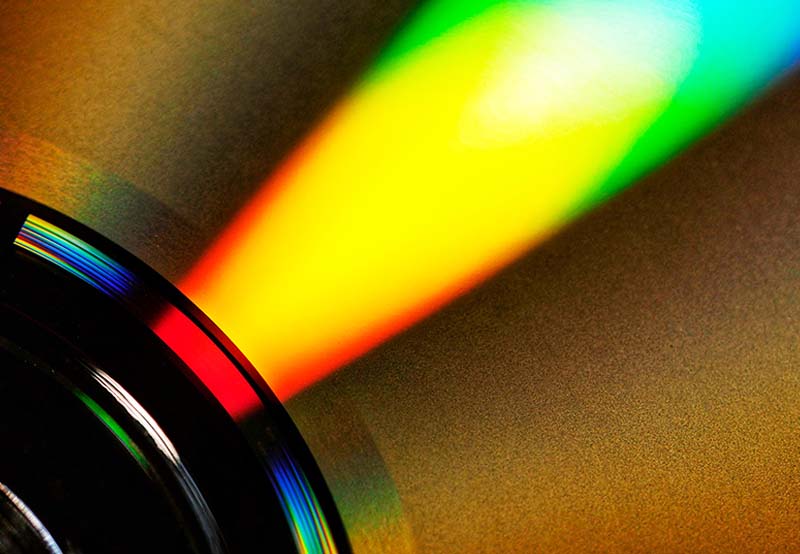 What is chromatic aberration? (and how to fix it)
 How to reduce audio noise in DaVinci Resolve Studio
 Mastering Slow Motion with Speed Warp in DaVinci Resolve: A Comprehensive Guide
 How to Sync Audio and Video Tracks in DaVinci Resolve
 How to Match Colors Between Video Clips Using DaVinci Resolve
 How to Set Up Video Projects in DaVinci Resolve

How to quickly resize an image in Premiere Pro
TL;DR: In this tutorial, you’ll learn how to resize an image in Premiere Pro step by step. You’ll adjust Scale manually in the Effect Controls panel and use the Fit and Fill shortcuts in the Properties panel for faster alignment. These techniques help you avoid floating images, eliminate black bars, and make every frame look intentional.
Key tips before resizing images in Premiere Pro
Learning how to resize an image in Premiere Pro is simple, but understanding why scale and framing matter will help you achieve better results in any video project. Before you begin adjusting scale, keep these principles in mind:
- Use high-resolution images.In 2026, most videos are exported in HD or 4K. If you start with smaller files, scaling them up will quickly reveal softness or pixelation. Choose sharp images that match or exceed your sequence resolution so they remain clear when enlarged.
- Prioritize landscapephotos. Landscape images naturally fit standard video frame ratios like 16:9, which means fewer black bars and less aggressive cropping. If you’re mixing portrait and landscape shots, you’ll likely need to adjust how each image fits the frame. As you’ll see later, tools like Fit, Fill, and manual scaling give you control over how your image adapts to the sequence.
- Add movement with intention. Video is a motion-driven medium. If you jsimply drop in static images, your edit can feel more like a slideshowthan a cinematic sequence. Whether you keep images static or animate them later, getting the scale right ensures your visuals feel deliberate and cohesive from the start.
4 steps to resize an image in Premiere Pro
Now, let’s walk through the exact steps to resize an image in Premiere Pro. It’s not complicated, but knowing exactly where to click is what separates guesswork from control.
We’ll use twohigh-quality stock photos from Envato to see how everything works in a real project.
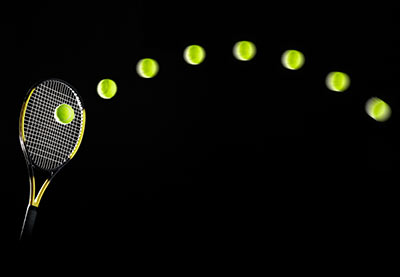

Now, let’s look at how to change image size in Premiere Pro in a few quick steps.
1. Add an Image to the Timeline
With a project open in Premiere Pro, you’ll first want to bring in an image. Once imported, it will appear in the Timeline panel, at the bottom center of Premiere Pro.
To add it to your sequence, locate the file on your computer. Click and drag it onto the Timeline, then drop it into place.
2. Launch the Effect Controls
Depending on the size of your image, it may fit nicely within the frame. In most cases, though, you’ll need to adjust the scale. If you see black bands around the image, enlarge it to fill the frame. More often, you’ll actually need to scale it down, since many still images extend beyond the edges of your sequence.
To adjust your image, head to the Effect Control panel on the left side of your screen, next to the Program Monitor. If you don’t see any options at first, click directly on your image clip in the Timeline. As soon as it’s selected, the available controls will appear.
3. Adjust the Image Scale
With your image in the Timeline and the Effect Control panel open, unfold the Motion section.The option you’re looking for is Scale.
By default, images are set to 100%scale. To adjust it, click inside the Scalevalue box and enter a new number. You’ll see the result update instantly in the Program Monitor.
Values above 100 zoom the image in, centered on its anchor point. Values below 100 shrink the image. If you scale it down enough, you’ll start to see the black space around the edges of your frame.
Note:
Under Transform in the Properties panel, you’ll find options like Fit and Fill.
- Fit resizes the image so the entire photo remains visible inside the frame. This preserves the full composition but may leave black borders depending on the aspect ratio.
- Fill scales the image to cover the entire frame. This removes black borders but may crop portions of the image.
If your sequence is horizontal and you insert a vertical photo, Premiere preserves the original proportions. Choosing Fit or Fill helps you decide whether you want full visibility or full frame coverage.
The Scale control under Motion can also be used creatively. Preview your image at 100%, then increase it to 200% to see how dramatically the framing changes.
In this example, we’re using the first image from the tutorial so you can clearly see how scaling affects composition.
At higher values, you can emphasize details, tighten the composition, or draw attention to a specific subject. Just be mindful of image resolution; scaling too far can reduce sharpness.
4. Preview the finished result
Just like that, you’ve resized an image in Premiere Pro. As a final check, play your sequence from the beginning.
This quick preview helps you catch anything unexpected before exporting or sharing your project. Make sure your image fills the frame correctly, and adjust the Scale value again if needed. If the image shifts out of alignment while scaling, simply double-click the clip in the Program Monitor, then drag to reposition it until the framing matches your vision.
Final thoughts on changing image size in Premiere Pro
Changing image size in Premiere Pro may seem like a small technical adjustment, but it has a significant impact on the overall quality of your edit. When your visuals fit the frame cleanly, without stretching, awkward crops, or black bars, your project instantly feels more professional.
You’ll use this technique constantly when working with still images, mixed formats, or multi-platform content. In 2026, when videos are created for everything from widescreen YouTube to vertical social feeds, knowing how to resize images properly gives you the flexibility to adapt your content to any format.
Now that you’ve mastered resizing, it’s time to create with better assets. Envato gives you access to high-quality stock photos, video templates, transitions, presets, motion graphics, and even AI-powered creative tools, so you can scale your visuals and your ideas at the same time.
Resize with intention. Create without limits.
Premiere Pro templates are just the tip of the iceberg with Envato Elements. As a member, you’ll enjoy unlimited access to over 15 million digital assets. These include fonts, stock video, music, and more. It’s the ultimate value for creatives in 2024 and beyond.
Choose a premium Adobe Premiere Pro template and enjoy:
- Sleek modern styles. Templates help your content look its very best. Modern styling is used that looks right at home on the big screen.
- Cinematic effects. Need cool transitions and animations? You’ll find plenty, with studio-quality designs.
- Easy-to-use features. If you’re not a video expert, no worries. Premium templates are easy to use, and many come with helpful tutorials to assist you.
As you can see, you can’t afford to miss out on Envato Elements. Join today and download your favorite templates from the incredibly vast library.
Resize an image in Premiere Pro FAQs
How do I resize an image without losing quality in Premiere Pro? |
To maintain image quality, use a file that matches or exceeds the resolution of your sequence. For example, use at least 1920×1080 images for a 1080p timeline, or 3840×2160 for 4K projects. Avoid scaling far beyond 100% unless the image has extra resolution to support it. Enlarging small images stretches the pixels, resulting in softness or visible pixelation. In modern workflows, starting with high-resolution assets is the simplest way to keep your visuals sharp. |
Why does my image look blurry or pixelated after scaling up? |
Blurriness usually happens when the image resolution is lower than your sequence resolution. When you scale above 100%, Premiere Pro enlarges existing pixels rather than creating new detail. Another common reason is exporting at a higher resolution than your original media supports. For example, inserting a 1080p image into a 4K sequence and scaling it aggressively will reduce clarity. The solution? Use higher-resolution images from the start and preview at 100% playback resolution in the Program Monitor to check true sharpness before exporting. |
Why are black bars appearing after I import my image? |
Black bars appear when your image’s aspect ratio doesn’t match your sequence settings. For example, placing a vertical (9:16) image into a horizontal (16:9) sequence leaves empty space on the sides. You can fix this by:
Choosing between Fit and Fill depends on whether you want full visibility or full frame coverage. |
What’s the difference between “Scale to Frame Size” and “Set to Frame Size”? |
This is one of the most misunderstood settings in Premiere Pro.
In modern workflows, Set to Frame Size is generally the safer, more flexible choice. |
How do I resize an image for vertical formats like 9:16 (Instagram Reels or Shorts)? |
First, create or switch to a 9:16 sequence (1080×1920 or 2160×3840 for 4K vertical). Once your image is in the Timeline, adjust Scale under Motion or use the Fill option in the Properties panel to ensure the frame is fully covered. Keep in mind that horizontal images placed in vertical sequences will need to be cropped or repositioned. Use the Position controls to refine composition and keep your subject centered. In 2026, designing with multiple aspect ratios in mind from the start saves significant editing time. |
Can I animate an image resize in Premiere Pro? |
Yes. You can animate Scale using keyframes in the Motion section of the Effect Controls panel. By setting a starting Scale value and adjusting it later in the Timeline, you create a smooth zoom effect. Even a subtle zoom adds movement and prevents static images from feeling like a slideshow. Just be mindful of resolution limits—large zooms require higher-resolution images to stay sharp. |
How do I resize multiple images at once in Premiere Pro? |
After adjusting the Scale on one image, copy the clip (Cmd/Ctrl + C). Then select the other images in your Timeline and choose Edit > Paste Attributes (Cmd + Option + V / Ctrl + Alt + V). In the dialog box, check Motion, then click OK. Premiere will apply the same Scale and Position settings to all selected clips, helping you keep consistent framing across your sequence. |
How do I reset an image to its original size? |
To reset your image in Premiere Pro, return the Scale value to 100% in the Motion section. If you’ve applied additional transformations, you can right-click the Motion property and choose Reset Parameter to restore default settings instantly. This is especially useful when experimenting with zoom or reframing and needing a clean starting point |

12+ Best Data Visualization Software Tools (Free + Paid) for 2026
The days of having simple spreadsheets to show all a company's data are gone. No matter the industry, data visualization software helps you make important decisions.
Data visualization tools help you transform all your company's data into visual form. This allows you to turn all your company's complex data into a more digestible format that's easier to communicate.
Data visualization tools can help you analyze everything from your email campaigns, sales trends, and new markets that your company should pursue.
In this article, we'll cover the benefits of using data visualization tools. We'll explain what to look for in these visualization tools. And we'll cover thirteen of the top free and paid tools for 2026.
Benefits of Data Visualization Tools
If you're running a business, the data that's available can be overwhelming. Even if you've got a team dedicated to data analysis, data visualization tools provide incredible insight into how your business is operating and how it should operate in the future.
But how do these visualization tools actually help us with our business? There are a few main ways that data visualization software prove to be invaluable tools:
- Interpret data quickly. Every business has metrics they need to sort through like email opens, sales, and customer retention rate. visualization tools help you summarize everything that's happening with important metrics.
- Make inferences on the next actions that would help your business move forward based on this information.
- Visualization tools uncover new patterns and trends. If your data is scattered across spreadsheets and reports, it'll be harder to see the big picture of your business. When you've got this compact visual representation, discover new trends that you wouldn't have otherwise.
- Simplicity. Your businesses data needs to be shared with managers and executives. If the businesses data isn't simplified, it'll be incredibly hard to communicate the data effectively.
Now let's go over what you should look for in data visualization tools.
What to Look for in Data Visualization Tools
There are many data visualization tools available today that have countless features. But not all the features offered are needed to get the most from the software. To help you pick the best software for data visualization, we'll go over the features that you should look for.
Here's a list of features to look for when picking your data visualization tools:
- Artificial intelligence integration. Artificial intelligence combined with data visualization is very powerful. AI can help suggest improvements to your business that you wouldn't have thought of yourself.
- Graph & chart templates. Creating your charts and graphs from scratch can be quite daunting if you aren't a graphic designer. Having templates ready to go in the software makes the data crunching process much quicker.
- Importing data API. Data importing is a must-have feature. If you aren't able to import your data into the software through an API, then you'll have to import the data manually.
Now that we know the benefits of data visualization software and the main features to look for, let's go over the best data visualization software tools for 2026.
12+ Best Data Visualization Software Tools (Free + Paid) For 2026
To help you make the best choice for your data visualization software, we'll go over the best options available:
1. Toucan Toco
Toucan's mission is to reduce the complexity of data for business users. Toucan makes it easy to connect to any data whether it be cloud-based, streamed, or stored. The preparation of data also makes it a desirable data visualization software. Perform the data preparation without a data expert. Toucan likes to use data storytelling by having context to each graph and chart.
Here are the main features for this data visualization software:
- data transformation
- integration APIs
- Data querying, blending, & filtering
- WYSIWYG report design
2. Tableau
Tableau was one of the early softwares from the start of data visualization software, making it a mature platform. The data visualizations offer guidance for how to use each visualization making it easy to understand.
The live visual analytics allow you to chop up the data in any way you see fit for finding new opportunities in your business. The software also offers many other interactive visualizations. These can be shared and understood by your audience.
Users of the software need to have a significant amount of training to get the most out of tools provided.
Here's what to expect from Tableau:
- large collection of data connectors and visualizations
- user friendly design
- large community of users
A free trial of Tableau is offered as well.
3. Microsoft Excel
Microsoft Excel is one of the most basic data visualization tools. Excel comes with of Microsoft Office 365 subscription, making the software a cheap option. At its core, Excel was made for spreadsheets, calculations, and graphs.
Excel doesn't have all the seamless API integrations of other data visualization software. But it still has a powerful visualization tools that can manage large amounts of data.
Also, most businesses are already familiar with Excel. So, no extensive training will need to be done.
Here are the main features of Microsoft Excel:
- can calculate complex calculations
- over 450 functions for displaying data
- easily editable graphs and charts
- great for collaborating
4. Google Charts
This cloud-based data visualization software can help you visualize your data with pictographs, pie charts, histograms, and more. Regardless of how simple or complex your charts need to be, Google Charts can handle it.
This data visualization software is best for mid-sized companies with 51 to 1000 employees.
There are many data connection tools and protocols to help you connect your data in real time.
Here are a few notable features for Google Charts:
- custom dashboards
- dataset management
- report sharing
- prebuilt visual formats
There's even a free version of Google Charts available for you to use.
5. Qlik Sense
Qlik Sense offers AI powered insights that help you explore your data in new ways. Active analytics are used for real-time collaboration and quick decisions.
Qlik Sense says that they offer the most complete data analytics capability set in the industry. You'll get a combination of public cloud, private cloud, and on-premises sites. This gives you full control of your data and analytics.
Integration with your data isn't a worry with Qlik Sense as it connects with hundreds of data sources.
Here are a few main features for Qlik Sense:
- self-service visualization
- interactive dashboards
- advanced AI analytics
- alerting & action
There's a free version and free trial available.
6. Datawrapper
Datawrapper is an open-source solution. It allows you to easily create charts and maps that are responsive, interactive, and embeddable. Automatically convert data from CSVs, PDFs, and other web resources. This makes it incredibly easy to import data. The charts, maps, and tables are highly customizable. They allow you to change the colors, fonts, adjust margins, add images, and add other brand elements.
Here are the main features for Datawrapper:
- full chart styling customizations
- live chart updates
- layout customization
- user friendly interface
Free trial is available.
7. Whatagraph
Whatagraph is an all in one solution for marketing professionals. Build charts and reports from across many channels such as Facebook, Twitter, HubSpot, and Google Analytics. Plenty of report templates come with Whatagraph or build a report from scratch.
Here are the main features for Whatagraph:
- deliver reports automatically
- monitor multiple channels at once
- custom report styling
- transfer custom data from any source
Whatagraph offers a seven day free trial
8. Zoho Analytics
Zoho Analytics is a great option for the general business public. No advanced knowledge of analytics is necessary. Create insightful reports and dashboards that help you make the best possible business decisions. Zoho reports has a representative feature that helps with data preparation and management. The interface is drag and drop for easy use.
Here's what to expect from Zoho Reports:
- over 250+ data integration sources
- connect with popular business applications in sales, marketing, finance, help desk, HR, IT
- self-service data preparation and management
- 250+ transform functions for your data
A free trial and free version are available.
9. Sisense
Sisense offers analytics integration with both the customer and employee applications and workflows. This isn't offered by many other data visualization tools. Sisense also boasts powerful AI driven analytics. Over two thousand top companies use Sisense for its business insights.
Here are a few main features for Sisense:
- calculated fields
- WYSIWYG report design
- score cards
- integration APIs
You can get a free trial of Sisense, but no free version is available.
10. Highcharts
This software is designed for developers and offers a very flexible charting library. Developers can add charts to web and mobile projects with ease using Highcharts. The complete feature set, ease of integration and comprehensive documentation make this a great choice.
Here are the main features for Highcharts:
- live connection to external data
- pre-built visualization templates
- pattern recognition and data mining
- support for machine learning models
Learn more about Highcharts in this tutorial:


11. Dundas BI
Dundas is best for mid to large enterprises. You'll find integrated dashboards, reporting tools, and data analytics on the platform. You'll be able to connect with any data source in real-time on any device with Dundas. Dundas was made to be embedded and offers complete customization through their open API platform.
Here are a few notable features:
- easy, smart drag and drop design tools
- fully customizable visualizations to create personal and professional dashboard views
- wide range of visualizations, styles and themes
- responsive design options
A free trial of Dundas is available.
12. Fusion Charts
Fusion Charts is a JavaScript charting library. Included are over ninety charts and one thousand maps that can be added to your dashboards. You'll be able to visualize your data with chart bars, 2D and 3D pie charts, line and area charts, and much more. Fusion Charts has been used by big companies such as Microsoft, IBM, Apple, and Intel.
Here are some notable features for Fusion Charts:
- customizable dashboards, reports, and templates
- wide range of data connectors
- real time analytics
- ad hoc reporting
Fusion Charts offers a free plan, a free trial, and runs on a subscription model.
13. Domo
With Domo, transform raw data into easy to understand visualizations and create curated data stories. With Domo's machine learning, leverage predictive insights to make the best businesses decisions. You've got full control over the graphs and charts that are created for custom reporting.
Domo's key features include:
- 150+ chart types
- 7000+ custom maps
- drill down analytics
- strong collaboration tools
A free trial is available for Domo.
Let's have a look at a must-have offer that businesses of all types can use.
Gain Access to High Quality Creative Assets
Regardless of the type of business you're working for or running, you'll need some type of professional creative asset. This can be anything from documents, images, and fonts. Using professional creative assets in your projects is a must if you're trying to save time and deliver a high quality product. Envato Elements has just what you need to supercharge your next project and save you time.
Envato is the best place on the web for creative tools of all types. For a low monthly fee, you get unlimited downloads of PowerPoint templates, photos, fonts, videos, and much more. All these resources can be used in your next project.
Envato is one of the best values out there for creatives today. With the unlimited downloads, you'll be able to try out all types of options in your upcoming projects.
Here's how you benefit from using Envato:
- save money by not having to hire professional graphic designers
- save time by starting with an already professional design
- generate new ideas with all the fresh creative assets
- focus on other parts of your creative project
Processing Data Has Never Been Easier
Data visualization tools are an invaluable tool when trying to run a successful business. These visualization tools help you interpret your businesses data in a quick and insightful way. With the help of artificial intelligence, you can uncover actions for your business to take you wouldn't have thought possible.
In this article, we covered thirteen of the best data visualization tools that have different features and prices. Find the tool that suits your needs and price point and simplify the processing of your businesses data today!

How To Move the Flash Off Your Camera for Better Photo Lighting
Welcome back to 'Introduction to Flash Photography'. I hope our last lesson has you inspired and you're ready to learn the nuts and bolts of how to take your flash off of your camera.
A Note on Vocabulary
We're going to start this lesson with a little bit of vocabulary. Two words that you will see a lot in flash photography lessons, especially older ones, are Master and Slave, but after many years of consumer pressure the industry is, thankfully, moving away from this paradigm. We use words that describe the technology more accurately, Transmitter and Receiver.
Going Off Camera
As we explored, there are a lot of creative benefits from moving your light away from the camera. Let me give you an example of how this all works together.
When I press the shutter button on my camera, there's a lag of a little less than 1/10th of a second between when the button is pressed and when the shutter actually starts to open. This tiny amount of time is when the magic happens in off-camera flash. The first thing that happens is a signal to fire a flash is sent to the flash hot shoe, right here:
These little contacts make connection with whatever you put into the hot shoe. If there were a flash in there, then it would fire. In this case, it's a Yongnuo Radio Trigger set to Transmitter Mode.
The radio trigger takes the signal and turns it into a radio wave and sends it out in all directions. On the other side of the room is an identical radio trigger, only this one is switched to Receiver Mode, which means it's listening for a radio wave from a transmitter.
When the radio away from the transmitter trigger hits the receiver, the receiver turns the radio wave into an electrical signal, the same as what came out of the camera's hot shoe. When you place your flash into the receiver's hot shoe, if everything works together correctly, the flash will fire in sync with the shutter opening, and it will give off all of its light during the fraction of a second that the shutter is open.
This is basically what happens in any off-camera flash situation, but there are many different off-camera flash systems that change up different parts. The biggest difference between off-camera flash systems is the method that the signal travels from the camera to the remote flash.
Hardwired Connections
The first and simplest way to send the signal to your remote flash is a Hardwired Connection. Within wired connections, there are basically two styles of connection:
- a sync cord
- an optical system
My camera uses what's called a PC style sync cord, but other cameras use different kinds, so make sure you get one that fits your camera. You simply hook up one end of the cord to the camera, and then you run the other end of the cable over to your remote flash and you hook it up the same way. Then you're ready to click away.
This style of wired flashed syncing is what is known as a Dumb Sync, which means that the signal that is sent is just a signal of the fire the flash, and that you will have to actually walk over to the flash unit and change the power on the back of the flash, manually.
If you want to retain TTL, or want to be able to control the flash from in your camera, you'll need what's called a TTL sync cord. One end plugs into the hot shoe of your camera, and the other end is the hot shoe. So your camera and flash work together the same way as they would with the flash connected directly to your camera. With this cable you'll retain your TTL capabilities and your high-speed sync capability, while giving your flash a lot more flexibility, and without spending very much.
Obviously the TTL cable is preferable to the dumb sync cable, but the general theme that you will see emerge is that the complexity involved in the TTL systems mean they are more expensive than the more simple, dumb or manual-only systems.
The benefits of a wired off-camera system is that they are generally much cheaper than a wireless system, and because of their simplicity, they're usually very reliable.
The downside is that you're limited by the length of your sync cable, to how far away your flash can be away from your camera. You also have to deal with a wire running around that constantly gets in the way while you're trying to shoot. It can get wrapped around your leg, and be a total pain.
Optical Triggers
The next off-camera flash system is the Optical Trigger System. Optical triggers for flashes use light, either visible or infrared instead of a wire to send the triggering signal to the flashes. The most simple version of an optical system is a flash that can be put into Optical Mode.
When this is done, you activate a photo sensor on the flash that acts like an eye that's looking for another flash to go off. In the instant that it sees another flash, it fires also, an adds it's light to the scene. The advantage of the system is that because of its simplicity, it's relatively inexpensive and it's relatively easy to setup. You also get an increased range between the camera and the flash of about 25 to 50 feet, depending on the brand that you get.
The downside is that this system requires two flashes and it provides you with only a dumb sync and no TTL or remote power control. You also have to have line of sight between your units, so you can't hide the off-camera flash around the corner, you have to actually be able to see the flash to fire it.
Pre-flash Systems
The other kind of optical flash system is the proprietary pre-flash systems used by Canon, Nikon and other major manufacturers. These systems suffer the same downsides as the dumb optical system with the exception that you now have TTL and remote manual controllability. You also retain your high-speed sync capabilities.
The way that these systems work is that during the shutter lag time, the flashes send out a bunch of small pre-flashes that the system uses to determine the correct power to use for the automatic TTL. Then, the lead flash sends out another series of pre flashes that tell the secondary flashes what power setting to use. After all of that, the flash burst syncs up with an open shutter. This is a very complex system and thus it's quite a bit more expensive than a dumb slave option, but if you need TTL or high-speed sync, it's a price you'll have to pay.
Radio Triggers
The final, and in my opinion, the best system for firing off camera flash are Radio Triggers. Like we saw in the very first example in a radio trigger system, the wires and pre-flashes are replaced with a radio wave. The main advantages to this are that radio waves will travel through walls and other substances, which means you don't have to see your flash to fire it. These radio signals used in these flashes generally have a much longer range than any other system, sometimes reaching into the hundreds of yards.
In the past, radio triggers were limited only to non-TTL, dumb syncing, however over the past few years flash companies have begun to make great strides in bringing TTL and remote manual control to radio triggers.
Take for example Canon's 600 EXRT (debut 2012), which was the first Canon flash to use a radio signal to trigger remote flashes instead of an optical system.
With all of these advantages and practically no drawbacks, I think a radio trigger system is definitely the way to go to get your flash off of your camera.
Light Stands
So now that you know how to get the flash off of your camera, where you going to put it? On a light stand, of course! And when choosing a light stand, there's just a few things you want to base your decision on.
First is how portable you need the stand to be. Some stands are really big and bulky, and they're not fun to travel around with, while others are lightweight and they fold up into a very small package.
The next thing you want to look at is how tall the stand is. Generally, I would recommend a 7-foot or taller stand, especially if you're shooting people so that you can get your light above a 6-foot person.
Finally, you want to find a balance between build quality and price, since very often you get what you pay for when it comes to build quality and durability.
Flash Recommendations
To bring all of this together, I'm going to give you one option out of literally thousands of different possibilities for an inexpensive, beginners, off-camera flash set up. Based on a bunch of research that I've done and reviews from trusted sources, I've decided on these particular components, and after just a short time using them, I'm extremely impressed with them.
Good-value Basic Flash With Radio Trigger
Okay. First things first, the flash I have chosen for you in this kit is the Yongnuo YN560-III, which currently sells for about $75 online.
This is a manual-only flash, so you will not have the option of using TTL with this flash. The guide number on this flash is, in reality, a little lower than advertised, but it's not too far behind the Canon flash that it's a copy of.
The flash head is plenty flexible and you'll do fine if you're using it for bounce flash. This flash also has a manual zoom head and the ability to plug in an external battery pack. But the thing that I love most about this flash is that it has a built-in radio trigger, which greatly simplifies the process of using it off-camera.
Radio Trigger
If you already have a flash, or want to experiment with an inexpensive second-hand unit, you can put any flash on a simple radio trigger to create an affordable multi-light setup. The trigger that I've chosen for this kit is the Yongnuo RF-603 II. The main reason that I chose this trigger is because it works directly with the flash that I've recommended. Otherwise, this is a basic, manual-only trigger and it works with just about every flash in existence. You can pick up one of these triggers for about $20, which is all you need to fire this flash off camera.
And if you already have a flash, you can get two of these triggers for $35 -- one to act as a transmitter attached to your camera, and one to act as a receiver attached to your light. A really cool added bonus is that if you buy the two pack of these triggers, they'll throw in a free shutter release cable that will allow you to actually take photos wirelessly from across the room. Just make sure that you ordered the two pack that has the correct shutter release cable for your camera, whether it be Canon or Nikon or other.
I have to say that I am pretty impressed with the features that they have been able to pack into these flashes for the money. And I'm pretty convinced that you would be hard pressed to find a better setup for the price. And if they prove to be reliable, you can bet that they'll get a ton of use for me.
If TTL is a deal breaker for you and you can't live without it, Yongnuo also has TTL versions of their flashes and triggers, which will only set you back about $200, which is still a really great deal compared to the other options available.
Stands
The final piece of our budget, off-camera flash kit, is the light stand.
There are of couple companies that make $20, 8-foot light stands. Cowboy Studio is one of them and Impact is another one and they would do fine to hold your flash and keep your budget around a $100. However, if you want to stand that's a little more portable and has a better build try the LumoPro LP605, which goes for around $45.
So that's the nuts and bolts of how to get started in off-camera flash. I'm guessing that you're really excited about today's homework lesson, which is basically to go shopping for your new off-camera flash system. Just make sure to save a few dollars for our next lesson on flash modifiers.
In our next lesson, I'm going to show you several different flash modifiers and what each of them does and how to use them to get the results that you want.

 A Photographer's Guide to Small Flash and Speedlight Features


 How to Bounce Your Flash for Soft Lighting in Portrait and Event Photos
 Radio Triggers for All! Take Creative Control of Your Lighting

 How to Use Your Canon Speedlite 600EX-RT


 Playing With the Qualities of Light in Studio Portrait Photography
 Easy Gear Hack: Fasten Stands Together for Quick Transport


20 Best Script Font Pairings (Fonts That Pair Well With Script)
Wondering which fonts pair well with script fonts? Read on to find some awesome handwritten font combinations.
Handwritten font combinations are a huge trend. They are versatile and can go from elegant to super casual. We've chosen a few script fonts from Envato Elements' big library and found the best font pairings.
Unlimited Fonts That Pair Well With Script on Envato Elements
If you're looking for inspiration or fonts that pair with scripts, be sure to check out Envato Elements. Their growing library includes awesome cursive and print font combinations and handwritten font combinations. You can also find other assets like photos, graphic templates, and videos.
1. Bellenia Love (OTF) and Kaiven (TTF, WOFF, WOFF2)
Coordinating fonts has never looked so good. This graceful and thin font is great for wedding invitations and beautiful stationery. Mix it with Kaiven Sans Serif, a contrast compared to the script. It's minimal, clean, and readable—the perfect font pairing for your projects.
2. Thousand Brights (OTF) and Bergen Sans (OTF)
This natural signature style font is based on handwriting. It was developed with a brush and later perfected to become a font you can use. Here, it's paired with Bergen Sans, a geometric sans serif that contrasts with the script font perfectly. This script font pairing is one of the top font duos for wedding invitations.
3. Billbreak (OTF) and Brigadier Sans (TTF, OTF, WOFF, WOFF2)
Are you looking to create your own clothing brand? This is the ultimate handwritten font combination. Billbreak is a script font inspired by street fashion. Brigadier is a tall sans serif that's elegant and balances the urban style of Billbreak. When it comes to ideal font duos, this will do.
4. Luxury Modish (OTF) and Gorgeous (OTF, TTF, WOFF)
Do you want to communicate luxury? That will be easy with this sans serif font that pairs well with script. This luxurious modern calligraphic font can be used as a presentation title. There are plenty of swashes and lines. Pair it with Gorgeous, a beautiful, legible serif font. You have the best combo right here!
5. Salzburg (OTF, TTF, WOFF) and Regime Grotesk (OTF)
The best complementary fonts that pair well with script are the ones that have been inspired by similar timelines. For instance, Salzburg is a vintage script font that was created with a brush and captures the retro style. Here, it is paired with Regime Grotesk, a versatile and geometric sans serif font inspired by the 20s and 30s.
This cursive and print font combination is great for propaganda-inspired branding.
6. New Bellar (OTF) and Artifex CF (OTF)
New Bellar is a modern calligraphic font. Its monoline nature creates a great flow and curve. And it's a great option to include in a winning font combo.
Artifex is a good font pairing for this cursive. It's easy to read with its smooth serifs, and it flows effortlessly. It's a good contrast to New Bellar but also has a few similarities with it.
7. Fioletrina (OTF, TTF, WOFF) and Jacques (OTF, TTF, WOFF, WOFF2, EOT)
Fioletrina is one of the best script typefaces. Easy and dynamic, this modern handwritten typeface is paired with Jacques. This versatile font is awesome for reading, and we've seen that contrasting forms make the best font pairings.
8. Lenteras (OTF, TTF) and Monetizer Condensed (OTF)
Are you coordinating fonts to create awesome branding? This handwritten font combination is awesome for a hipster brand. Lenteras has a monoline stroke, with fun characters and awesome ligatures.
Sans serifs are the best fonts to pair with script, and in this case I chose Monetizer—a modern condensed font that is minimal but still has that vintage personality. It's one of the natural font duos that you should try!
9. Hello Sister (OTF) and Liber (OTF)
If you're looking for a more playful script font pairing, this is for you. Hello Sister is a fun and casual script font that's playful. It's paired here with a geometric sans serif that's built on mathematical purity. Both are extremely legible complementary fonts that make a great pair.
10. Quick Sketching (OTF, TTF) and Altone (OTF)
Quick Sketching has an authentic and natural look. This freehand handwritten font has a signature style that can pair well with a sans serif.
In this example, Altone is a functional sans serif that's versatile. While it's geometric, it still maintains some of its humanistic shape. It's a modern font combo that's ideal for social media branding.
11. Cliona Bold (OTF) and Gayaku (OTF, TTF, WOFF)
This script font pairing is perfect for restaurant branding. Cliona Bold is a thick style monoline script that's highly legible. This cursive and print font combination would be great for menus and stationery. Gayaku brings a modern feel to the table with its unique shape and quirky personality.
12. Fireclay (OTF) and George Sans (OTF, TTF, WOFF)
Searching for a good-looking vintage style script font combination? Fireclay is a vintage-inspired font from the 70s that screams retro. George Sans is the perfect pair for this script. Its geometry gives it a 20s style, and both fonts combined look extra retro.
13. Distoniare (OTF) and Amarta (OTF, TTF)
The most classic cursive and print font combination is here. Distoniare is a pretty and classic script font. It has a natural and realistic flow that gives off an elegant feel. Amarta is a modern serif font that's also elegant and distinct from the script. This script font pairing is great for stationery and branding.
14. Handstand (OTF) and SuperLine (TTF, WOFF)
Handstand is a new brush font that's dynamic and urban. This casual script font includes many ligatures and swashes, making it look as real as possible. SuperLine is an all-caps font, the perfect complement to Handstand. This striking modern display font comes in three different styles. There's plenty to choose from!
15. Houdient (OTF, TTF, WOFF) and Gojali (OTF, WOFF)
Houdient is a modern, calligraphic, and classy script font. It's inspired by abstract shapes and has a lot of movement. If you're looking to create an eye-catching script font pairing, this is a good one. Gojali is a fresh, geometric sans serif font. It has the perfect balance of humanist and grotesk style.
16. Little Ribbon (TTF, OTF, WOFF) and Aginoe (TTF, OTF, WOFF)
The cutest script font pairing is here. Little Ribbon is a typeface combining simple lines, and it's playful and great for kids' projects.
Aginoe Sans is a unique sans serif font with modernist basics. This script font pairing makes a great team for branding and food packaging. Not many fonts that go together look as good as this combo.
17. Crafty Bestie (OTF, TTF, WOFF) and Berlin (OTF, TTF, WOFF, WOFF2, EOT)
This fun script font pairing is here to change branding. Crafty Bestie is a new display font that combines a hand-drawn style with a brush texture touch. It's playful, fun, and casual.
Berlin brings a nice balance to the script font samples. Inspired by geometric fonts, its mission is to communicate clearly. This handwritten font combination is perfect for packaging and branding projects that want to come across as fun.
18. Whiteflower (OTF, WOFF) and Davidas (OTF, WOFF)
Looking for more font pairing cursives that are good for menus? Whiteflower and Davidas is a great script font pairing that won't disappoint. Whiteflower is a monoscript with a clean look and gorgeous ligatures.
It's elegant and highly legible. Pair it with Davidas, a condensed sans serif font that contrasts with the height of the script. Use it for restaurant branding or wedding stationery, and simply enjoy a premium font combo.
19. Bargiery (OTF, TTF) and Delaproza (OTF, TTF, WOFF)
Looking for more beautiful and elegant script font pairings? Bargiery is a calligraphic script, the most elegant script font you will find. It's classic, and it looks best paired with a serif font.
Delaproza is a modern serif font that's as elegant as Bargiery. This combo is the best font pairing for wedding invitations, greeting cards, and books. These are two fonts that go together effortlessly.
20. The Hometown (OTF, TTF, WOFF) and Quart (OTF, TTF, WOFF, WOFF2)
This cursive and print font combination is classic. The Hometown is a brush-style script font in an urban style. It's casual and pairs well with a solid sans serif like Quart. This unique font is a strong and bold sans serif font that grabs attention anywhere it goes.
This pair is great for branding, promotional marketing, and social media graphics. Pair fonts like these to catch your clients' attention.
5 Awesome Script Fonts From Envato Elements
If you want to create great font pairings yourself, here are some of the best script font samples to play with:
1. Actually Script (OTF, TTF)
Enjoy the retro design of this high-quality font. It's one of the best script typefaces, featuring alternates, ligatures, and so much more. It's handmade and will match a myriad of projects.
2. Paradise Script (OTF, TTF, WOFF)
Another retro choice with a modern twist, Paradise is a must. It's really easy to pair fonts with this script typeface thanks to its versatility. You'll get alternates and ligatures, uppercase and lowercase letters, numbering, and punctuation.
3. Mield Script (OTF)
Here's a cool and casual script font that looks truly handmade. It features basic Latin A-Z letters, numbers, symbols, and ligature. You can't overlook Mield if you're coordinating fonts.
4. Romagllia Modern (OTF, TTF, WOFF)
When it comes to script font samples, Romagllia is a top choice. It's one of those fonts that go together perfectly with most typefaces. Enjoy ligatures, stylistic sets, and alternate characters with this download.
5. Sillentha Script (OTF, TTF)
If you still need to pair fonts in a creative way, you can't go wrong with Sillentha. This calligraphy script comes with over 360 glyphs and even provides alternative characters. It's one of the best script typefaces available.
That's It!
In this article, I showed you complementary fonts to pair with scripts. Scrips are never going out of style. These fonts are great for branding and a classic choice for wedding stationery.
Finding the best font pairings is like finding precious metals. As a designer, it's always great to have a couple of combinations in your toolbox. Which font pairing cursive is your favorite?
If you're looking for inspiration or script font pairings, be sure to check out Envato Elements. Their growing library includes the best font pairings and fonts to pair with scripts. You can also find other assets like add-ons, presentation templates, and stock video.
You might also be interested in the following articles:
 34 Most Popular Script Fonts for 2021
 30+ Beautiful Modern Script Fonts (Typefaces for 2025)
 Hand Lettering: Mastering Brush Script
 20+ Free Fonts for Silhouette (Script, Cursive, Monogram, and More)
 Hand Lettering: Scripts, Swirls, and Flourishes
 Mastering Calligraphy: How to Write in Roundhand Script

How to Use the BMPCC: Complete Guide to Setup, Filming, and Post-Production
The Blackmagic Pocket Cinema Camera series is a fantastic one for aspiring filmmakers; these affordable cameras made it possible to get high-quality results on a budget.
When deciding to buy any new camera, it’s wise to research and make sure you know everything you’ll need to get off to a strong start. For that reason, we’ve put together a number of articles and guides to help, with everything from essential accessories to how best to protect your camera. Here, we’ll put all of those together for you in one neat user-guide, so you can keep referring back to it no matter what stage of camera use you’re at.
This article and the ones we’re linking to reference the BMPCC 4K specifically, but there’s a lot of crossover. Just be sure to double-check that any accessories you may buy are suitable for your particular model.
Before You Buy – What You Need
One of the big problems with Blackmagic PCCs is that they come with very little included, there’s a lot of stuff you need to think about buying at the same time in order to hit the ground running when you get your camera.
If you already have a camera and need to know how to get set up, start with our quick-start introduction:
Storage and Memory
The first thing to think about is storage: where are you going to keep all this stuff? The camera and it's kit needs a closet or drawer to sit in safely while you aren't using it. Bonus if a place to charge batteries is handy nearby.
Second, the BMPCC doesn’t have an internal hard drive or come with any storage as standard. You’ll need to think about what type of filming you’ll do and how long you’ll film for. If you want to film for long periods of time in 4K, for example, you’d need a lot more storage than if you were only ever filming for a short time in HD.
Power
Power is another issue, mostly for the same reasons as above, but you'll need to give extra thought to how you'll mount any external power (like battery grips) to the camera and whether that will get in the way of anything else you use, like a shoulder mount, for example. You may want to have a variety of ways to power your camera, powering it through a gimbal when mounted to that for example, and switching to a battery when not.
Protection
The BMPCCs can be... fragile. There have been complaints of it breaking easily when knocked or dropped, and additional problems like the inputs being pushed into the body of the camera. If you've paid a lot of money for something you'll want to make sure it lasts as long as possible, so that means thinking about some good and cost-effective ways to add extra protection.
You'll want to consider a cage to help protect from bumps and scrapes, plus it's a really useful thing to attach things to, as again the BMPCC isn't great for places to put... stuff! You can attach things like microphone mounts, quick release plates, handles and so on, to a cage.
There are also various adapters you can buy to keep permanently plugged into your inputs so you're not pulling cables out of the main body all the time.
Microphones
The BMPCCs come with some decent built-in mics, but if you'd like to record professional audio then you're going to need something better. What you choose and how you set that up with your camera will depend on your specific needs, but a good rule of thumb when it comes to mics is don't go too cheap or you'll end up paying twice. Paying a little more for quality is well worth it if you can afford to. Remember to add a wind sock, or "dead cat," for outside recording, and think about how you'll attach and mount your mic — there are both 3.5mm Jack and Mini-XLR input options on the BMPCC 4K.
BMPCC Setup and Settings
Getting Started
If you're brand new to the BMPCC and maybe even to filmmaking then you'll need to know how to get started once you've got your camera. This means knowing which recording settings are best for you, taking into account video codecs and resolution and the various checks and balances that come with those choices.
You should also have a good working knowledge of LUTs (more about these below), and any useful tools the camera may have, like focus assist.
Audio
Audio knowledge is often lumped in with filmmaking generally but really good audio capture is a skill of its own. Which microphones you choose and how you set those up and position them can be the make-or-break of collecting high-quality, professional audio. How you power those is equally important, bearing in mind some won't need any power at all, some will come with their own power and some will need phantom power which comes through the camera. If you accidentally send phantom power to an already powered mic or one that doesn't need power, you can actually do some physical damage to your kit, so it's worth learning good sound techniques and practices so you'll have confidence that you're always getting the best audio in the most efficient way.
Cinema Tools and Useful Extras
Once you've got to grips with the basics, you'll want to customise your setup a little. Some of these extra pieces of kit will come out of a direct need, like getting a monitor because you can't see the screen well enough, for example.
Some might come from the desire to get a different kind of functionality or shot, like a gimbal.
Then there are those little extras that aren't essential but that can make your life a little bit easier. Things like lens filters, hoods and matt boxes to help block out the sun, and a follow focus to help you focus more accurately and quickly and also to help you rack focus.
Look-Up Tables, or LUTs, are presets that let you have more accurate and more creative colour, in both your camera and post production. They can save a lot of time, too.
Production and Post-Production
When it comes to production and post-production, it's another one of those things where what you need will be very specific to your project. To help you out though, here are some useful free articles you might want to check out.
- How to Create Video Project Templates With Post Haste (Save Time for Free)
- How to Sync Audio Tracks Automatically in Resolve Using Fairlight
- Video Color Correction, What Is That?
- How to Automatically Transcribe and Caption Videos in Premiere Pro Using Speech-to-Text
DaVinci Resolve
You'll have your choice of video editing suites of course, but as BMPCCs come with DaVinci Resolve as standard, you might find these Resolve-specific articles and video templates useful.
- How to Match Colors Between Video Clips Using DaVinci Resolve
- How to Apply Adjustments to Multiple Video Clips in DaVinci Resolve
- How to Sync Audio and Video Tracks in DaVinci Resolve
- How to Get Rid of Mouth Clicks in Speech Using Fairlight in DaVinci Resolve
- 10 Top YouTube Intro Templates to Make Openers in DaVinci Resolve
- 10 Top Cinematic Intro Templates for Epic Movie Titles in DaVinci Resolve
More Useful Video Templates for DaVinci Resolve


20 Best Free Printable Flyer Design Templates to Download Now
When someone views your flyer design, it's often their first time coming in contact with your business. Opinions are immediately formed when viewing a flyer. This makes it necessary for you to put your business's best foot forward through the design of the flyer.
Start your flyer creation process with premium and free printable flyer templates. This way you start with a high-quality and professional-looking template that's sure to impress. With free printable designs or premium flyer design templates, you can spend your time focusing on content rather than on the flyer design.
Best Premium Printable Flyer Design Templates on Envato Elements (With Unlimited Use)
Premium templates give you a greater level of control when editing. You need to have an excellent flyer design to make a great first impression, and premium printable flyer design templates help you do just that.
Find professional best-selling printable flyer design templates on Envato Elements. For a low monthly cost, Envato Elements gives you unlimited access to over 15,000 templates and designs to help you create professional-looking flyers.
All the flyer design templates in the Envato Elements library are fully customizable and feature the trendiest designs for this year. You won't find this level of customization or as many high-quality designs with any free printable flyer design templates. Get access to all these printable flyer design templates!
Don't miss out on this opportunity to get access to the best flyer design templates available on the web. Create next-level designs that convey your business in an elegant way with templates from Envato Elements.
Before we delve into the best free printable flyer design templates available, let's look at premium templates from Envato Elements.
13 Best Printable Flyer Templates (From Envato Elements)
Now let’s look at a few of the top premium printable flyer templates from Envato. We’ll first explore some of the best cool flyer designs from Envato Elements in this section:
1. Birthday Party Creative Flyer (AI, EPS)
Are you looking for fun printable flyer templates? Check out this flyer perfect for a birthday party or any kind of party. It's one of the best flyer templates online. You'll get a well-organized file in A4 size that you can customize in Adobe Illustrator.
2. Farmer Market Flyer & Instagram Post (AI, EPS, PSD)
Make a clean and cool farmers' market flyer with this template. This download is also ready for you to promote your event on Instagram stories and posts. Start working with this printable A4 flyer to promote all your events. You just need to make a little investment to make a printable flyer with a few clicks.
3. Training Flyer (PSD)
Invite new blood to your gym or fitness center with this modern flyer template download. It's designed with training and your brand in mind. Place your logo and name on the page, as well as your latest offer to visitors. Easily add stock photos or use images of your gym. You can get the perfect printable flyers ready in just a few clicks.
4. Marketing Conference Flyer (PSD)
Most free flyer templates you download aren't aligned with design trends. Premium templates are updated constantly to keep their designs functional and trendy. That's why this flyer template might be one of the best flyer templates for any kind of event or conference. With your download, you'll get a modern flyer design ready for print. Customize this A4 file in PSD, work with free fonts, and change the colors and images to match your brand.
5. Boutique Flyer (PSD, AI, INDD, EPS)
Boutiques are chic. Shouldn't your flyer look the same? If you want your flyers to have the same aesthetic as your locale, try out this template. The design is contemporary, and it comes with print options. Boutique Flyer includes US Letter and A4 flyer formats. You also have a range of file formats to choose from, meaning you can use the platform you're comfortable with to edit.
6. Corporate Flyer (PSD, JPG)
This minimal template gives your flyer the perfect design for any corporate flyer. If you need to resize any of the objects in the flyer, you can do so without any loss in quality. All the text in the flyer is editable, so you can present your specific project with all the necessary text.
7. Hostel Flyer (PSD, AI, INDD, EPS, JPG)
This double-sided flyer is ideal for promotions and advertisements. This versatile template is layered, fully editable, and visually appealing. Here are a few of this printable flyer design template's notable features:
- US Letter and A4 flyer formats
- includes a customized layered Photoshop template
- comes with Microsoft Word and iWork Pages template
Not many free printable, editable flyers are this versatile.
8. Property Flyer (PSD, JPG)
Photos are an integral part of any flyer. The layout of this cool flyer design template helps highlight your photos and catch the attention of your audience. Whether you're looking to showcase real estate, a fitness class, or any type of promotion, the Property Flyer allows you to show your business in an attractive way.
9. Interior Flyer Download (INDD, PDF)
Use this clean and modern design for any product or service your company wants to advertise. This cool flyer design template features four photo slots with layered text and titles, as well as a bottom text and icon area to describe your promotion. The size of the letter is 8.5 X 11. Use this stylish design for your next flyer project now!
10. Real Estate Flyer (PSD, AI)
Real Estate Flyer lets you describe your promotion or advertisement in detail as there are many text fields available that cover two-thirds of the flyer. The simple but elegant font gives the flyer a sense of professionalism and helps build trust. If you're in need of a minimal and high-quality template, then this is the one for you!
11. Yellow Modern Business Flyer (AI, PSD)
Are you in digital marketing? You might have noticed by now that flyer templates for free download won't have the visual impact you need. This flyer is ideal for promoting all your brand events and parties. You'll also get Instagram post and story templates with this download. Customize and add your own content in Adobe Photoshop or Illustrator. Flyer design templates for free download don't offer this much versatility and quality.
12. Winter Festival Flyer (PSD, AI)
Promote your winter event with a fun flyer! This cold weather template features warm and inviting illustrations to welcome event-goers. Both of the included Photoshop and Illustrator files are well organized with layers to make editing easier. You can add times, event details, and more to the Winter Festival Flyer template to make it your own.
13. Toscha Flat Design Book Fair Flyer Set (AI, PSD)
Last but definitely not least, check out this cool flyer design. It's a great deal, so you can stop looking for flyer design templates for free download. This flyer set is ideal to promote a book fair or any other kind of event or project. All the text, images, and graphics come on separate layers, so you can edit them easily. Work with one of the best printable flyer templates!
Now that we've covered the best cool flyer design templates from Envato Elements, here are the best free flyer design templates that you can download.
20 Free Printable Flyer Design Templates for Download
The premium printable flyer design templates let you use the best designs available for your flyer. This ensures that the user experience is the best it can be.
Before looking for a free flyer template on the web, check out Envato's free offerings first. Try out various premium template files (not always flyer templates) at no cost to you.
Here's the deal:
Every month, Envato Elements offers 12 different hand-selected files, (fonts, presentations, videos, and more). Create a free account to download this month's free premium files now.
But, if you're on a tight budget and can't afford premium designs but still need to create a professional-looking flyer, there are free templates you can download.
I've collected a list of 20 of the best free printable flyer design templates for free download below:
1. Rock Music Event Free Flyer Download
This free printable flyer design template is designed for events. It's completely editable in Photoshop. This can be a great flyer design template, and it's free to download.
2. Neon Mardi Gras Flyer
Yes, you can turn to Microsoft Word if you need free flyer templates. This one has a Mardi Gras theme. Use it if you want free printable, editable flyers for your marketing.
3. MMA Flyer Template
This flyer template free download has a gritty look that's customizable in Photoshop. Change the photos, text, and more in this free flyer design template.
4. Free Printable Fall Festival Flyer Template Download
The lovely fall colors of this free printable flyer template complement its design. There's plenty of room on this flyer template free download to describe your promotion and add your contact details.
5. Health Care: Free Printable Flyer Template
This free printable flyer template is designed for the healthcare market. This flyer template for free download contains an editable PSD file that's well organized.
6. Zigzag Free Flyer Design
Free printable, editable flyers like this one are multipurpose. It has a simple design and customizable text boxes. This free flyer template is sure to catch the attention of your target audience.
7. Promotional Business Flyer Template Free Download
This promotional free flyer template is best used for promotions, branding, brochures, and marketing. Download this free printable flyer template's design and get to creating!
8. Free Flyer Template With Tear-off Tabs
Looking for free flyer templates to attract new clients? This free printable flyer template is perfect for anyone looking for new clients. The layout and editability make it a nice free printable design. It's one of the best printable flyer design templates that's free.
9. Free Business Flyer
Find the right fit for your job vacancy. This is one of those flyer design templates for free download that can help you find the right candidate. Use this free printable flyer template to promote all the necessary details.
10. Summer Beach House Party Flyer PSD
This free advertising flyer design is for promoting summer nights in the sand. It's one of the best flyer design templates that's free, and it has a party theme.
11. Football Party Flyer
Do you need flyer layout templates for free? Check out this free printable, editable flyer is a typical multipurpose download. It has a simple layout that can be nice for football or sport parties. Flyer templates for free download like this one also work for other kinds of events.
12. School Education Admission Flyer Design PSD
This free printable flyer template design is fully customizable. Its colorful look and fun typography are ideal for preschools and other kid-related events.
13. Tour and Outdoor Adventure Business Flyer PSD
If you have excursions to promote and a limited budget, this might be the best flyer design template that's free and related to your needs. The free printable flyer download includes an editable PSD file.
14. Big Day Sale Flyer PSD Template
This flyer template for free download can be used to promote your store's latest sale. It's useful if free printable flyers are what you're after.
15. Free Printable and Editable Student Flyer
Here's a minimalist free download flyer template. Students can make use of this to promote events. Unlike some other free printable flyers, you'll edit this in Word.
16. Classy Illustrated Easter Flyer Template
This is a free printable flyer with an Easter theme. There are few printable, editable flyers that fit this niche as well as this option.
17. New Year Party Flyer Design PSD
Free printable flyer templates that promote parties aren't exactly hard to find. Still, this option is a nice choice for a New Year's event.
18. Elegant Winter Party Flyer
Here's another of Microsoft's free printable flyer templates. It's customizable and can be used for elegant winter parties or other kinds of winter events. For winter events, this is one of the best flyer design templates that's free.
19. Corporate Business Promotion Flyer Design PSD
Use this printable free flyer design for your business promotions. It has a corporate feel to its layout. It's a nice choice if you're looking for free printable, editable flyers.
20. Disco Ball Graduation Party Flyer
Make a free printable flyer for your graduation party! Free flyer templates download like this one are a good place to start. It's one of the best flyer design templates that's made for graduations or any kind of party.
Now that we've gone over the best premium and free flyer design templates available, we'll discuss how you can get the most out of these free printable flyers.
5 Quick Design Ideas to Make a Great Flyer
Even if you're using a premium or free flyer design template, you'll still need to design the flyer to convey your message in a visually appealing way.
Don't forget to browse through Envato Elements to find the exact premium template needed to start your project and use these simple flyer design tips.
Now, here are a few flyer design ideas on how to get the most out of your flyer design templates:
1. Use Colors That Support Your Message
The psychology of color is a very powerful tool. It'll enhance the message of your specific flyer. Use colors that match what you're trying to convey in your flyer.
2. Limit Your Font Choices
Having many different fonts in your flyer can easily clutter up your design. Limit your font choices to two or three to ensure an easy-to-read flyer.
3. Design for Trimming
The reason for this is trimming. When cutting out flyers from a batch of printings, the cutting of each flyer won't be 100% accurate. If you've got important items on the edge of your design, they might be cut off during the trimming process.
4. Use Contrast
Using visuals that are contrasting helps your flyer pop out. Create this contrast from the colors, images, and fonts that you use. The idea is to pick design elements that help you convey your message but are also different enough from each other to garner attention.
5. Include a Call to Action
The whole purpose of your flyer is to inform the viewer and get them to act! When you're designing this call to action, consider the last tip of using contrast.
5 Top Flyer Design Trends for More Impact
Now that I've shared with you some useful ideas to apply to your next flyer, why don't you check out these awesome printable design trends? Give your next flyer an unforgettable design! Here are the trends:
1. Vintage Vibe
The retro text-over-background look is back with a refreshed look. This trend for printable flyers works better with maxi typography and monochrome tones, like in this cool vintage flyer template.
2. Only Typography
Speaking of typography and fonts, another big flyer trend for this year is to go for a design that features only fonts. Designers play with unique typography to come up with striking results! See an example of the trend in this printable flyer template.
3. Geometric Look
This trend incorporates triangular, circular, and rectangular shapes to catch the audience's attention!
4. Minimalist Feeling
Take advantage of this cool design trend to create polished and clean flyers. Keep this well-known adage in mind: less is more.
5. Free & Open Composition
If you really want to think out of the box, then get rid of the grids and frames and go for a free composition in your printable flyers.
Discover More Great Flyer Templates
Each flyer design template gives you the opportunity to deliver your message in a unique way. Envato Elements offers a ton of exclusive printable flyer template designs for one low monthly fee.
With your unlimited subscription, you'll have complete access to a massive library of professional flyer design templates. You can also find a design template that meets your needs by browsing the articles below:
 20+ Business Flyer Templates (Creative Layout Designs & Industry-Specific Templates)
 20 Free Adobe InDesign Flyer Template Design Ideas for 2025
 37 Best 90s Party Flyer Templates (90s Theme Flyers)
 25+ Best New Product Flyer Design Templates (Inspirational Examples 2025)
5 Benefits of Using Premium Printable Flyer Templates
We know flyer design templates that are free to download are useful when you're on a limited budget. But using premium printable flyers can have many benefits for you and your business or project.
Let me tell you some of the benefits of professional printable flyer templates:
- Make a great first impression. As we've said, your flyer is the first impression a customer will get of your business or brand. Why choose free flyer templates that anyone can download, when you can get a unique flyer template? With our premium printable flyer templates, you can be sure you’re making the best first impression.
- Save hours of work. Premium printable designs mean you won't have to invest time in designing your flyer from scratch. You won't have to think about the right colors or composition. Just download it and fill in the event or project details!
- Customization is infinite. A professional printable flyer also gives you unlimited customization options: color, fonts, size, etc. You can edit any detail of the high-quality flyer templates from Envato.
- Show your brand. Our printable flyer templates will let you add your own branding colors and logos. Don't miss out on a chance to professionally present and share your brand!
- Inspiration is included. If you don’t have a clue about how to start designing your next flyer, browsing our collection of printable flyer templates is the place for you. We've got templates for every occasion!
Envato Elements: Design Without Limits
Now that you know the benefits of using premium flyer templates, Envato Elements has a fantastic (all-inclusive) offer for you:
Sign up for Envato Elements and get access to thousands of creative digital assets with unlimited use. Download as many flyers, brochures, presentations, and resume templates as you need. All for one low monthly price.
Learn More About Printable Flyer Design
If you're new to flyer design or you're looking for useful resources about this subject, let me share our carefully crafted guide, Flyer Design & Templates.
There you'll find useful articles about which software to use, tips on how to design a fantastic flyer for every occasion, and some video tutorials about flyer design. Check these out:
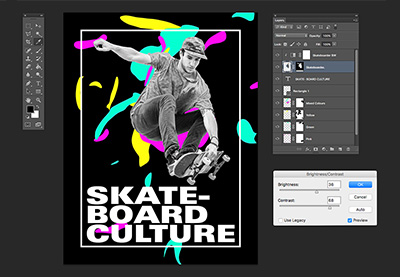 What’s the Best Program to Make a Flyer?
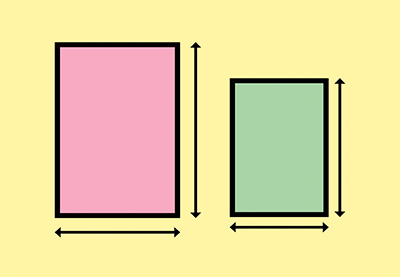 A Guide to Standard US and International Flyer and Poster Sizes
 How to Quickly Make Great Flyers in Word (With Pro Template Designs)
The world of design goes a lot further than flyer templates. If you're looking to dive even deeper into design and illustration for your business or personal projects, turn to Envato Tuts+ on YouTube. There are hundreds of design and illustration video tutorials to help you improve your knowledge.
Take a little peek at what you can find on our YouTube channel below:
Professional Printable Flyer Design Templates for You
As you can see, there are many high-quality premium and free printable flyer design templates available. Use templates and the five simple flyer design tips listed above to create a stunning flyer for your business that's sure to be successful.
Check out Envato Elements to gain access to exclusive premium flyer design templates. Premium professional templates offer higher quality designs compared to the free alternatives. Whichever design you decide to use, it's time to act. Get started on your flyer design today!
Caught the flyer bug? If you're looking to learn even more about flyers, check out the roundups and tutorials below:
 How to Make a Tear-Off Flyer Template in Affinity Publisher (Free Flyer File to Download)
 31 Best Flyer Mockups (Using a Mockup Generator)
- How to Quickly Make Great Flyers in Word (With Pro Template Designs)
 23 Best Free Flyer PSD Templates (Photoshop Designs to Download)
 How to Make a Church Event Flyer (Using a Flyer Maker)
 How to Make a Marketing Flyer Template in InDesign
 15+ Best Customizable Marketing Flyer Template Design Ideas
 How to Make a Business Flyer (Using a Flyer Generator)
 15 Design Tips to Make Professional Business Flyers in 2025 (With Great Designs)
 How to Make a Missing Person Flyer (Free Template Download)

Envato Tuts+ Community Challenge: Created by You, January 2017 Edition
Welcome to our monthly feature of fantastic tutorial results created by you, the Envato Tuts+ community! Every day, visitors like you take the time not only to read our tutorials but also to try them out. This is an assortment of those comment submissions found throughout the Design & Illustration section. Check out this set of results and join in for the next roundup, published next month!
Vector Tutorial Results
Taken from the comments section of your favorite tutorials, these first pieces are an assortment of results created with vector drawing programs. Check out these amazing results!
Create Detailed Tulips With Gradient Mesh in Illustrator
User NataBena created a gorgeous set of tulips all on her own from this Gradient Mesh tutorial by instructor Diana Toma. She simply said:
Thank you for the tutorial!
Create a Rainbow Vomiting, Kawaii Unicorn in Adobe Illustrator
Inspired by this fun Rainbow Unicorn tutorial by Mary Winkler, Missy B created her own in a fun pink color. She commented:
This killed my morning and I loved it!
Create a Colorful, Vector Carnival Mask
Putting this awesome Vector Carnival tutorial by instructor Diana Toma to use, Lysmar Acevedo created a stunning version on her own. She commented:
Thank you. This was a great tutorial, I enjoyed it!
Create a Vibrant Peacock in Adobe Illustrator
Nina Kamberi created this awesome Colorful Peacock inspired by a tutorial from Yulia Sokolova. She commented:
I forgot to look and see if it was advanced, but I started and just had to finish. So here's mine!
Create an Easy, Valentine's Day Bunny in Adobe Illustrator
Inspired by this Valentine's Day tutorial from Nataliya Dolotko, Joshua created his own illustration featuring two adorable bunnies. He commented simply:
Thank you for this tutorial!
How to Design a Krishna Janmashtami Postcard in Adobe Illustrator
Luana Albino created her own awesomely peaceful illustration inspired by this Krishna Postcard from instructor Yulia Sokolova.
Create a Traditional Russian Khokhloma Ornament in Illustrator
Hoang Pham recreated this gorgeous Russian Ornament from a tutorial by the talented Yulia Sokolova. He commented:
Thank you! Great tutorial!
How to Create a Space Shuttle Scene in Sketch
Paulius Tvaranavičius blasted away and recreated this awesome Space Shuttle Scene by instructor Nikola Lazarevic. He commented:
I had a lot of fun with this one! Thank you for another great tutorial, Nikola! Here is my remake.
Create a Vector, Daily Flip Calendar
Butu truly absorbed this Vector Calendar lesson by Andrei Marius and made it his own for a unique design.
Create an Art Nouveau-Inspired Glinda Character in Adobe Illustrator
Inspired by this Art Nouveau tutorial from Maria Dimova, Patrycja Sklodowska created a stunning winter illustration of her own. She commented:
Great tutorial! I've learned a lot!
Adobe Photoshop Tutorial Results
Let's take a look at this next set of results inspired by Adobe Photoshop tutorials published here on Envato Tuts+. Contributions range from photo effects to icons and more! Check out these wicked results below!
How to Create a Cute Dragon Photo Manipulation in Adobe Photoshop
Franck Beaume conquered this Dragon Photo Manipulation from Monika Zagrobelna in order to create an amazing result of his own. He commented:
Thanks for this great tutorial Monika, I read it and I tried something a little bit more dark.
Create a Marvelously British Scone Text Effect in Adobe Photoshop
Giambi Gandini recreated this delicious Scone Text Effect from a tutorial by Rose, commenting:
I love apricot jam!
How to Add Texture to a Flat Illustration in Adobe Photoshop
Aisha Khan added texture to her own Flat Illustration using awesome techniques from Yulia Sokolova. She commented:
Thank you so much for your tutorial. It really helped me improve my Photoshop skills. I really love your work and hope to use more of these techniques in some of my own.
How to Turn a Landscape Photograph Into an Isometric Icon in Adobe Photoshop
Inspired by this Landscape Isometric Icon tutorial by Mohammad Jeprie, Julio Dian created his own unique icon featuring a glance at the roots of a tall tree.
Design a Detailed Audio Receiver Icon in Photoshop
Kevin tackled this highly detailed Audio Receiver tutorial from Nikola Lazarevic and knocked it straight out of the water. He simply said:
Thanks! Here is what I came up with!
How to Create a Fantasy Fairy Photo Manipulation With Adobe Photoshop
Liya Rybakova created a gorgeous interpretation of this Fairy Photo Manipulation by instructor Jenny Le. She commented:
Very beautiful work and thanks for the tutorial!
Design Tutorial Results
These final pieces are inspired by an assortment of design tutorials that don't quite fit the previous categories. They include everything from print design to drawing and more! Enjoy these beautiful pieces created by the community below!
How to Design a Retro Poster in Adobe Illustrator
After taking on this Retro Poster design by Janie Kliever, Mary Lee created a stunning design of her own and used it in a custom mockup. She commented:
I may have improvised a little! Thanks! I'm in a super mood now!
How to Create a Vintage Typographic Illustration Poster in Adobe Illustrator
Xiaomin Jiang recreated this Vintage Typographic Poster by Janie Kliever perfectly, commenting:
Thank you for your tutorial! It really helped me a lot!
How to Be Involved in the Next Showcase
Have you created a piece based on one of our tutorials here in the Design & Illustration section of Envato Tuts+? We're keen for you to share your results with us! Check out the general guidelines below to join in with our community:
- Your artwork should be similar in some way to the tutorial that you followed or that inspired it. The aim of these showcases is to share what readers have created after following the tutorial.
- Comment on the tutorial you used, attaching an image of your result. We're keen on all levels of ability: from beginner to advanced!
- Include a comment about your result, yourself, or your process. We like knowing about you and what you're sharing.
- Share the tutorial when you share that artwork elsewhere on the web. If you've posted your piece on sites like Facebook, Tumblr or Behance, link back to the tutorial so that other users know your source and can join in on the fun.
Thanks to everyone who was highlighted above for sharing your results with the Envato Tuts+ community. We look forward to checking out your brilliant versions of our tutorials in the near future, and welcome users new and old to participate in upcoming showcases.
Win $250 USD Showing Off Your Creation!
Jump over to the Envato community forums to show off your creation from one of the many Tuts+ tutorials. Read more about it over here.

ROCK AND ROLLS FOR LIFE
Profile Information
- First & Last Name :
- Annop Chinwongket
- I am an Artist/Talent : (ระบุตามจริง/มีผลงานแสดง)
- Graphic Designer

AON's Artworks/Photos
\m/ ME \m/
Added January 11, 2012 at 1:27am
WEBSITE
Added January 11, 2012 at 1:23am
PACKGING
Added January 11, 2012 at 1:21am
PRINTING
Added January 11, 2012 at 1:17am
LOGO / BRANDING / CI
Added January 11, 2012 at 1:17am
Creative Citizen NEWS
Switch to the Mobile Optimized View
© 2009-2026 PORTFOLIOS*NET by CreativeMOVE.
Powered by


Comment Wall (71 comments)
You need to be a member of PORTFOLIOS*NET to add comments!
Join PORTFOLIOS*NET
ไม่ทราบว่ารับ ตำแแหน่ง Motion ไปหรือยังครับ
สวัสดีครับยินดีที่ได้รู้จักครับ ผมโน๊ต ฝากติชมด้วยนะครับ
ปล. ชอบ stefan sagmeister เหมือนกันครับ
View All Comments